A custom User Defined Language (UDL) theme for Notepad++ to provide proper syntax highlighting for XDC (Xilinx Design Constraints) files. This repository includes two variations: a Dark Mode and a Light Mode theme, ensuring compatibility with your preferred Notepad++ style configuration.
- Syntax Highlighting: Clear and accurate highlighting for XDC commands, keywords, and values.
- Dual Mode Support: Dedicated themes for both Dark and Light Notepad++ environments.
- Easy Installation: Simple process using Notepad++'s built-in UDL import function.
-
Dark Theme
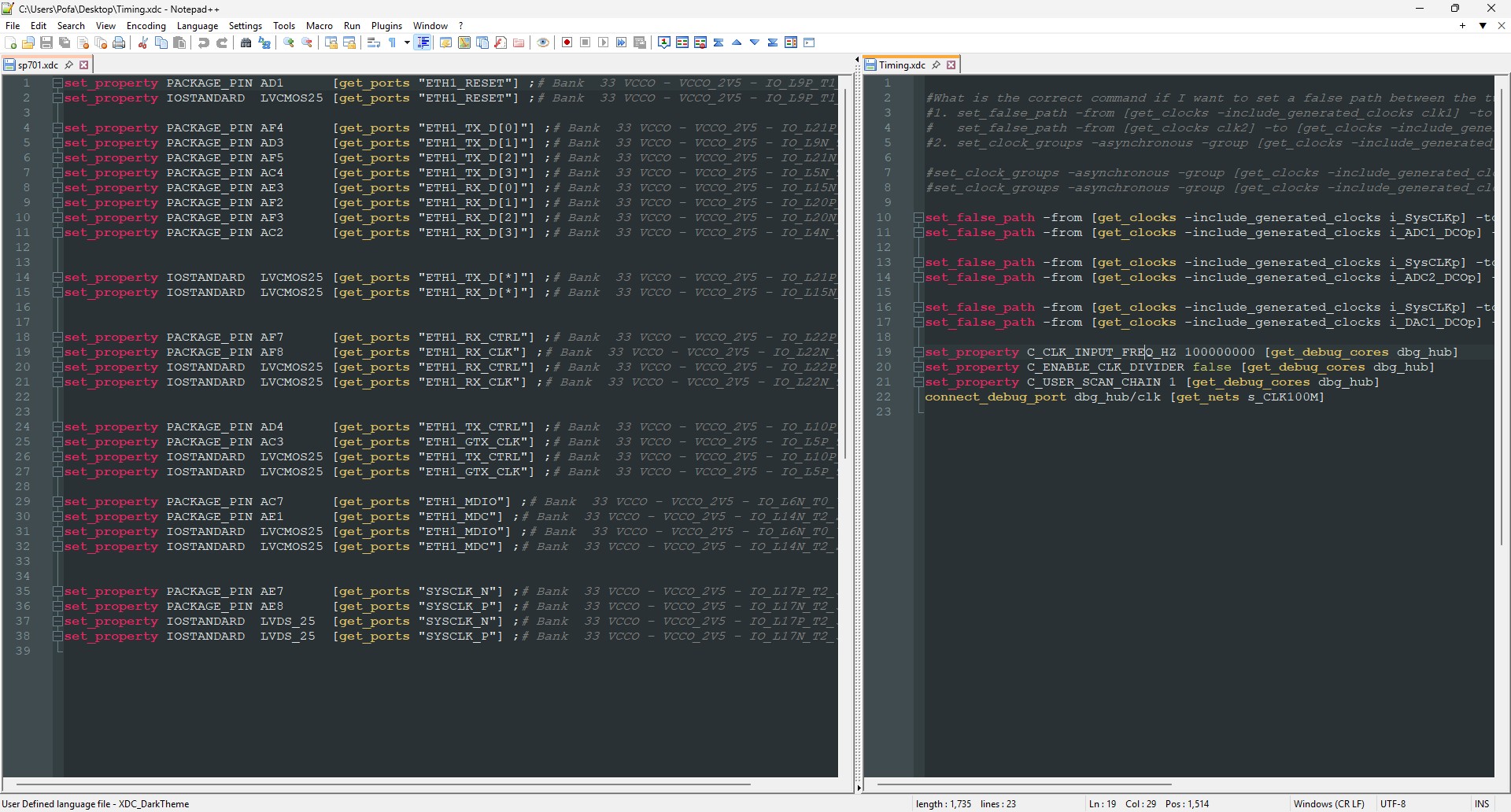
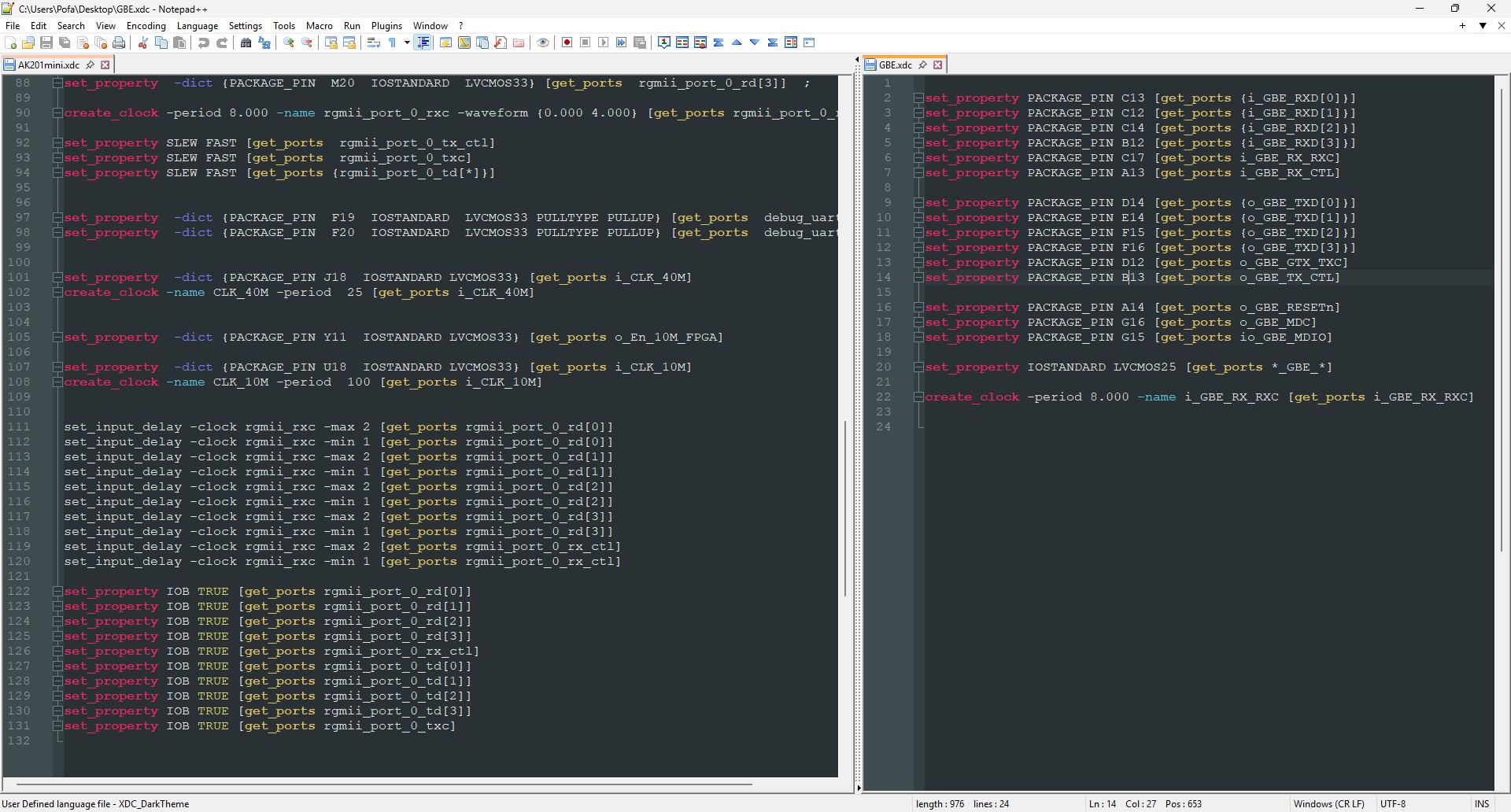
-
Light Theme
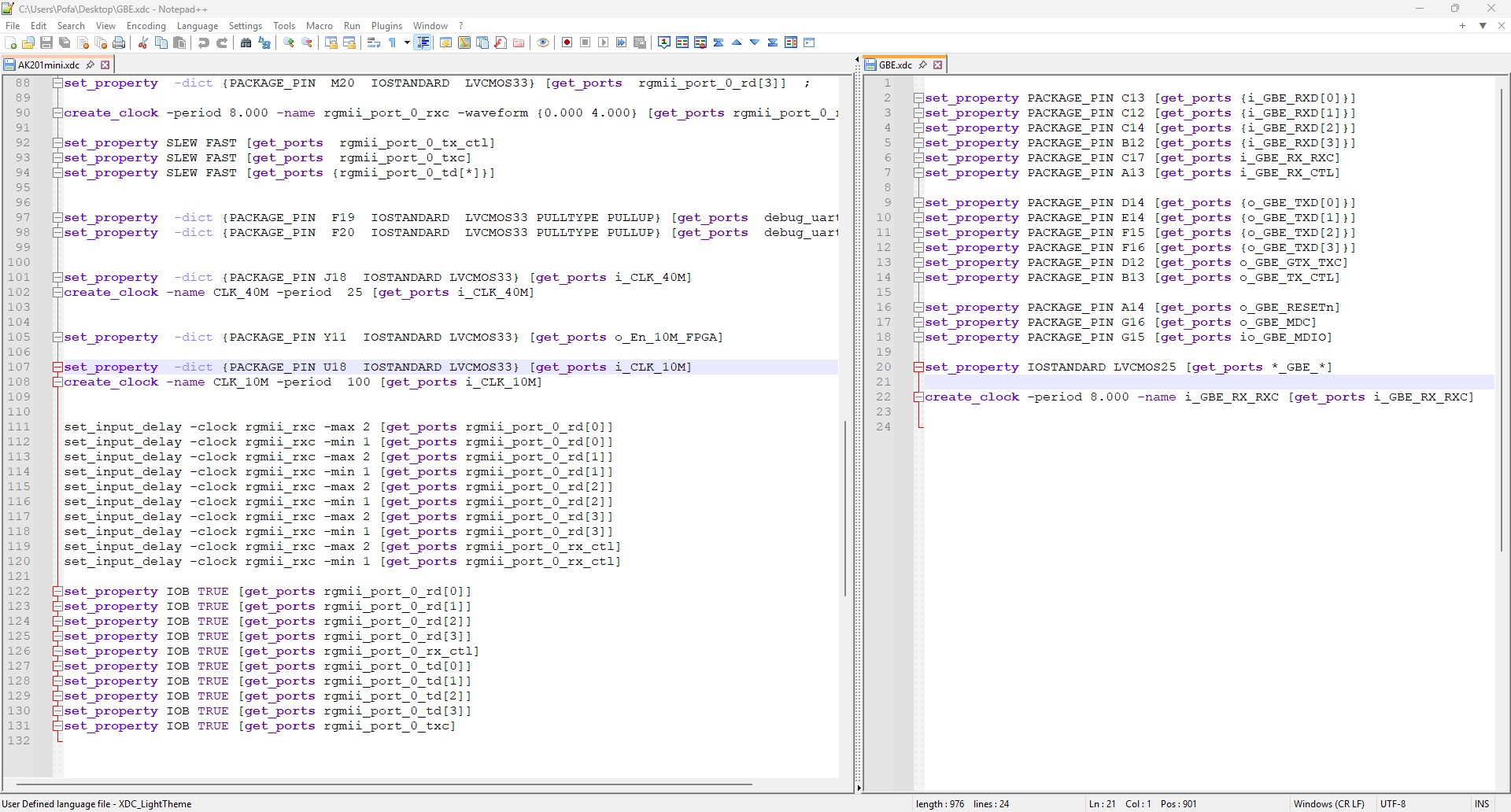
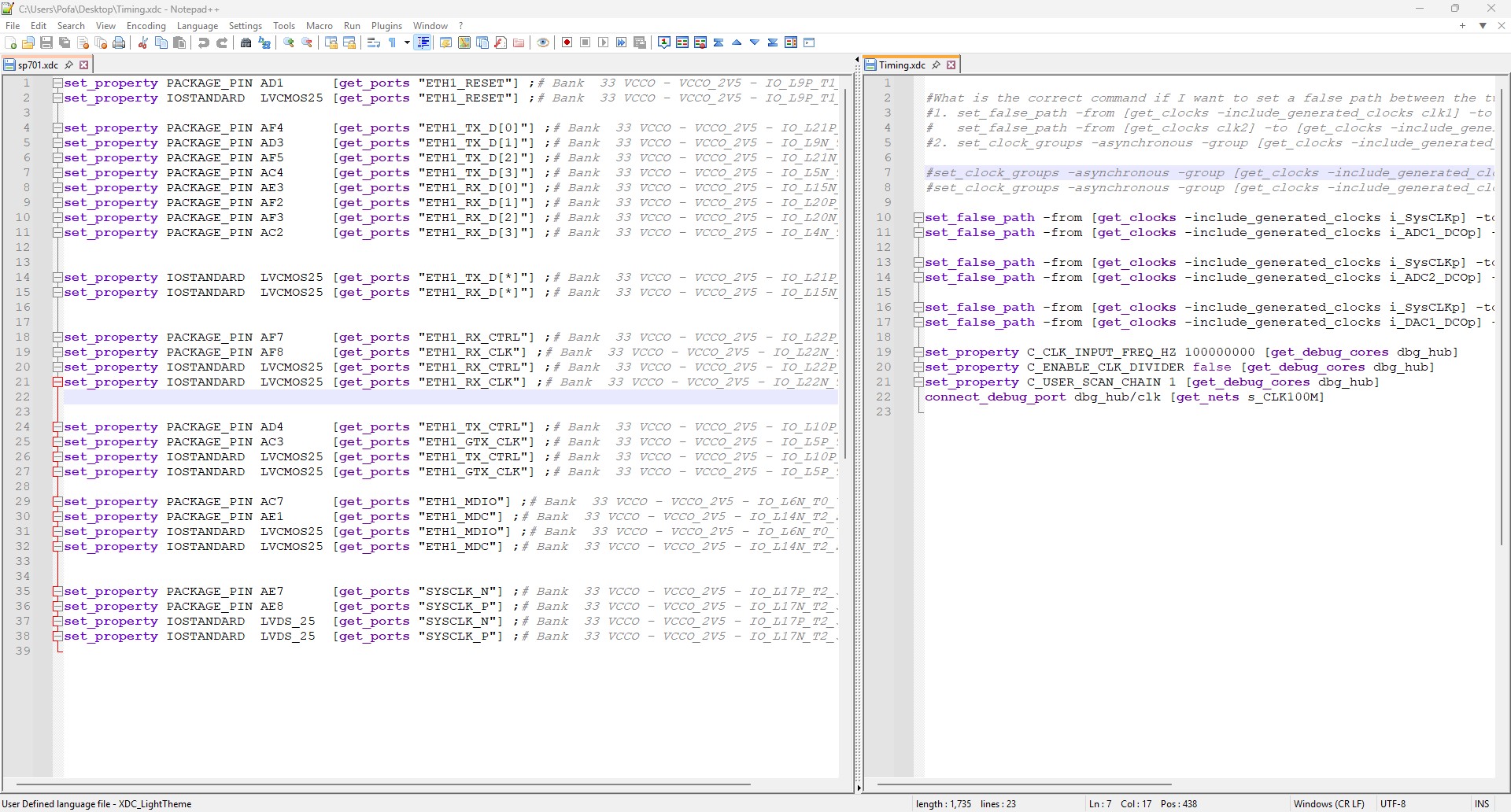
Download the latest release ZIP file from the Releases page or clone this repository:
git clone https://github.com/pofa10/XDC_for_NotepadPPThe location depends on your Notepad++ installation (portable or standard).
-
Standard Installation: The folder is typically located at:
%APPDATA%\Notepad++\userDefineLangs(You can paste this path into your Windows Explorer address bar). -
Portable Installation: The folder is typically located in the userDefineLangs subdirectory of the portable Notepad++ installation folder.
-
Copy the theme files (e.g., XDC_Dark_Theme.xml and XDC_Light_Theme.xml) from the downloaded/cloned repository into the userDefineLangs folder you located in Step 2.
-
Restart Notepad++.
- Open an XDC file (a file with the .xdc extension) in Notepad++.
- Go to the main menu: Language -> User Defined Language -> (Your Theme Name - e.g., XDC Dark).
Note: You will need to manually select the appropriate theme (Dark or Light) based on your global Notepad++ color scheme (set in Settings -> Style Configurator).
if you enjoy it or wanna help the author for more open-source projects, give it a ⭐️ and you can support them from here.
- BTC:
bc1qpprd4ug9s4ws66mwqx0xypdcx7e200jzfjkeum - ETH:
0xB9E09Ff8757C4233371C9Bf5109E528dAd9daE19 - TRX:
TRAzJXsMbtF63Gqr2opSP6hnssMJnrJZs5 - XRP:
rKE8XHE6GKHXzfC9qMERXXBvfcZU6RLVK5 - DOGE:
DSSS3sLKjCMLSYzbSz4tfYmCFMsuS9haA2
if you have any suggestions and ideas or fixing bugs, please feel free to connect with me: [email protected]
or
