
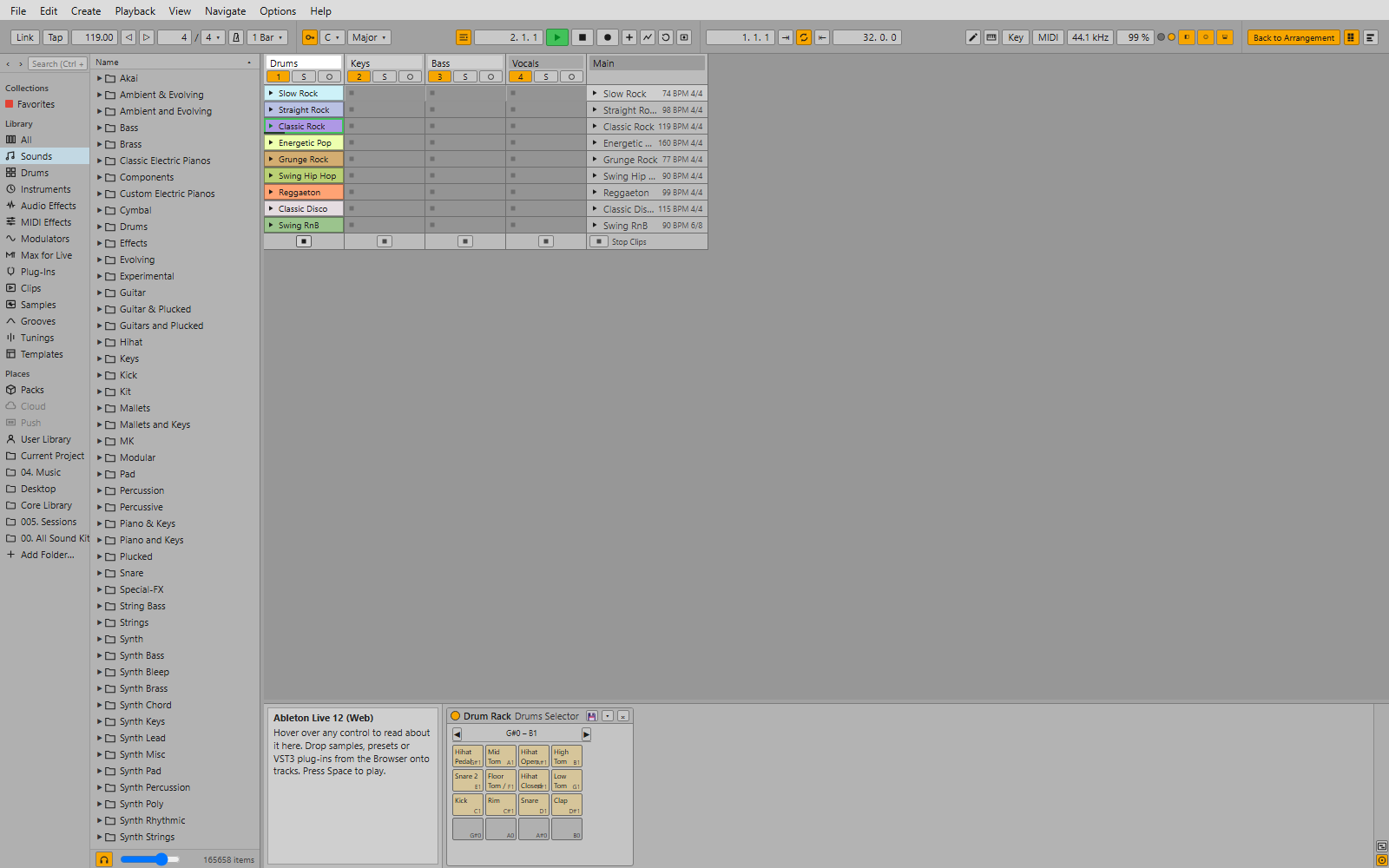
A browser-based re-creation of Ableton Live 12's Session and Arrangement views —
built on the Web Audio API, reading your real Ableton library and Live Sets,
hosting VST3 plug-ins, and fully controllable by Claude through an MCP server.




Project page: ableton.ext.am
Not affiliated with Ableton AG. "Ableton" and "Live" are trademarks of Ableton AG. Ableton's Core Library, Packs and User Library content are Ableton's property and are not part of this repository.
Two views, like Live
- 🎛️ Session View — clip-slot grid with scenes, launch buttons, stop buttons, Stop All Clips, per-scene tempo / time-signature overrides, quantized launching (global or per clip), Trigger / Gate / Toggle launch modes, Legato, and Back to Arrangement.
- 📐 Arrangement View — beat ruler, overview, loop brace with punch in/out, locators, draggable / trimmable / splittable clips, fades, time selection (insert silence, delete / duplicate / cut / paste time), automation lanes with breakpoints and freehand drawing, zoom & scroll, follow playhead.
- ⌨️ Tab switches views, Shift+Tab switches the Clip / Device detail view — the same keys as Live.
Tracks, clips and editing
- 🎚️ Audio, MIDI, group, return and Main tracks; track headers with I/O routing, activator, solo, arm, monitoring, volume / pan, sends and meters.
- 🎹 MIDI Clip View — piano roll with draw mode, move / resize, velocity lane, fold, scale highlighting, quantize, legato, reverse, invert, duplicate loop, chance and velocity range.
- 🔊 Audio Clip View — start / end / loop markers, warp (re-pitch), Seg. BPM, transpose, detune, gain, fades, reverse.
- 📋 Cut / copy / paste / duplicate / consolidate / crop, undo & redo for everything.
Sound
- 🧩 40+ built-in devices with Live's real parameter sets: EQ Eight, Compressor, Glue Compressor, Reverb, Delay, Auto Filter, Saturator, Drum Buss … · Simpler, Sampler, Drum Rack, Impulse, Operator, Analog, Wavetable, Drift · Arpeggiator, Chord, Pitch, Random, Scale, Velocity, Note Length · Instrument / Audio Effect / MIDI Effect Racks with macros.
- 🔌 VST3 plug-ins — every VST3 Live sees is listed, inserted as a device and rendered through a Python sidecar (pedalboard); native plug-in editors open on the server.
- 🎙️ Recording — audio input recording, MIDI recording with overdub, count-in, record quantize and Capture MIDI.
- 💾 Export — 24-bit WAV of the mix, a range or single tracks; MIDI clip export.
Your Ableton library
- 📚 Browser with Collections / Library / Places: Sounds, Drums, Instruments, Audio Effects, MIDI Effects, Plug-Ins, Clips, Samples, Grooves, Templates, Packs, User Library, your own folders; search, preview, favourites, drag & drop into tracks and clip slots.
- 📂 Opens
.alsLive Sets made by Live 12 — tracks, arrangement and session clips, scenes, notes, devices, mixer, tempo, loop, locators, scale; loads.adv/.adgpresets and racks and.alcclips; saves Ableton-style project folders.
Claude built in
- 🤖 MCP server with 72 tools — transport, set, tracks, clips, notes, devices & parameters, automation, session clips & scenes, browser, VST3, screenshots. Ask Claude to "write a 2-bar bass line in C minor and launch scene 2" and watch it happen.
| Supported | Notes | |
|---|---|---|
| Server | Windows 10 / 11 ✅ tested · macOS · Linux | Pure Node.js (ESM), no native modules. Live's library paths are auto-detected on Windows; on macOS / Linux set them in Options → Preferences. Native file / folder pickers exist on Windows only — type paths on other systems. |
| Browser | Chrome / Edge ✅ tested · Firefox · Safari | Needs Web Audio, AudioWorklet and (optionally) Web MIDI. Chromium browsers give the best results; Safari has no Web MIDI. |
| Node.js | 20 or newer (24 tested) | fetch, ES modules and structuredClone are required. |
| Ableton Live | 12 (optional) | Only needed to auto-detect the Core Library, User Library and Packs. Without Live, install the free Live 12 Trial or use the Core Library download (see installation). |
| Python | 3.12 + pedalboard (optional) |
Only for VST3 hosting. |
| ffmpeg | optional | Only for AIFF / MP3 / FLAC / OGG files the browser cannot decode itself. |
- Node.js 20 or newer — https://nodejs.org
- Git (to clone) — or download the ZIP from GitHub
- A Chromium browser (Chrome or Edge)
git clone https://github.com/gextam/ableton-web.git
cd ableton-web
npm installThe app plays Live's factory content (Core Library presets, samples, templates). It finds that content in one of these ways — pick the one that fits you:
| You have… | Do this |
|---|---|
| Ableton Live 12 installed (Suite, Standard, Intro, Lite or the Trial) | Nothing. The server reads Library.cfg and finds the Core Library, your User Library and your Packs folder automatically. |
| No Live — recommended | Install the free Live 12 Trial (90 days, the full Suite) or Live Lite. Both install the Core Library, and the app detects it on its next start. Live itself never needs to be opened. On macOS / Linux, set the path in Options → Preferences (auto-detection is Windows-only). |
| No Live — direct download | Download core_lib.rar (about 1.8 GB) and extract it with 7-Zip or WinRAR into the app's core_lib/ folder so that core_lib/Devices, core_lib/Samples, core_lib/Templates … exist (not core_lib/core_lib/…). The server picks core_lib/ up on its next start — no settings needed. |
| The content somewhere else | Start the app once, open Options → Preferences and set Core Library, User Library and Packs folder (or edit coreLibraryPath etc. in config.json). |
ableton-web/
└── core_lib/            ← extract the Core Library here (this folder is git-ignored)
    ├── Devices/
    ├── Samples/
    ├── Templates/
    ├── MIDI Clips/
    ├── Racks/
    └── …
The Core Library is Ableton's copyrighted content and stays Ableton's. It is not part of this repository and must never be committed to one; the download above is a convenience for licensed Live users who do not have it installed.
| Feature | Install |
|---|---|
| VST3 plug-ins | Python 3.12, then py -3.12 -m pip install pedalboard numpy (Windows) or python3.12 -m pip install pedalboard numpy. The app finds plug-ins in the standard VST3 folders; add more in Preferences. |
| AIFF / MP3 / FLAC decoding | Install ffmpeg and put it on your PATH (on Windows a winget install ffmpeg is enough). |
npm startOpen http://127.0.0.1:8787 in Chrome or Edge. The first start scans the library (a few seconds to a minute depending on its size) and writes config.json next to the app.
Browsers keep audio silent until you click. The app shows a yellow banner until your first click or key press — that is the browser's autoplay rule, not a fault.
The server exposes an MCP endpoint at http://127.0.0.1:8787/mcp and a stdio shim. Keep the browser tab open: Claude's commands are executed by the Live window.
# Claude Code (Streamable HTTP, recommended)
claude mcp add --transport http ableton-web http://127.0.0.1:8787/mcp

# Claude Code (stdio shim)
claude mcp add ableton-web -- node /path/to/ableton-web/mcp/stdio.mjs
Claude Desktop (claude_desktop_config.json):
{ "mcpServers": { "ableton-web": { "command": "node", "args": ["/path/to/ableton-web/mcp/stdio.mjs"] } } }Help → Claude / MCP Setup… inside the app shows these commands with your actual paths filled in.
| Key | Meaning |
|---|---|
port, host |
Where the server listens (default 127.0.0.1:8787). PORT in the environment overrides port. |
coreLibraryPath |
Ableton's Core Library (auto-detected from Live, else core_lib/). |
userLibraryPath, packsPath |
Your User Library and installed Packs. |
projectsRoot |
Where new Live Set projects are saved (default projects/). |
userFolders |
Extra folders shown under Places in the Browser. |
vst3Folders |
Extra VST3 plug-in folders. |
collectSamplesOnSave |
Copy external samples into the project on save (like Collect All and Save). |
autoRenderVst3 |
Render VST3 chains automatically when playback starts. |
All of these can be changed in Options → Preferences.
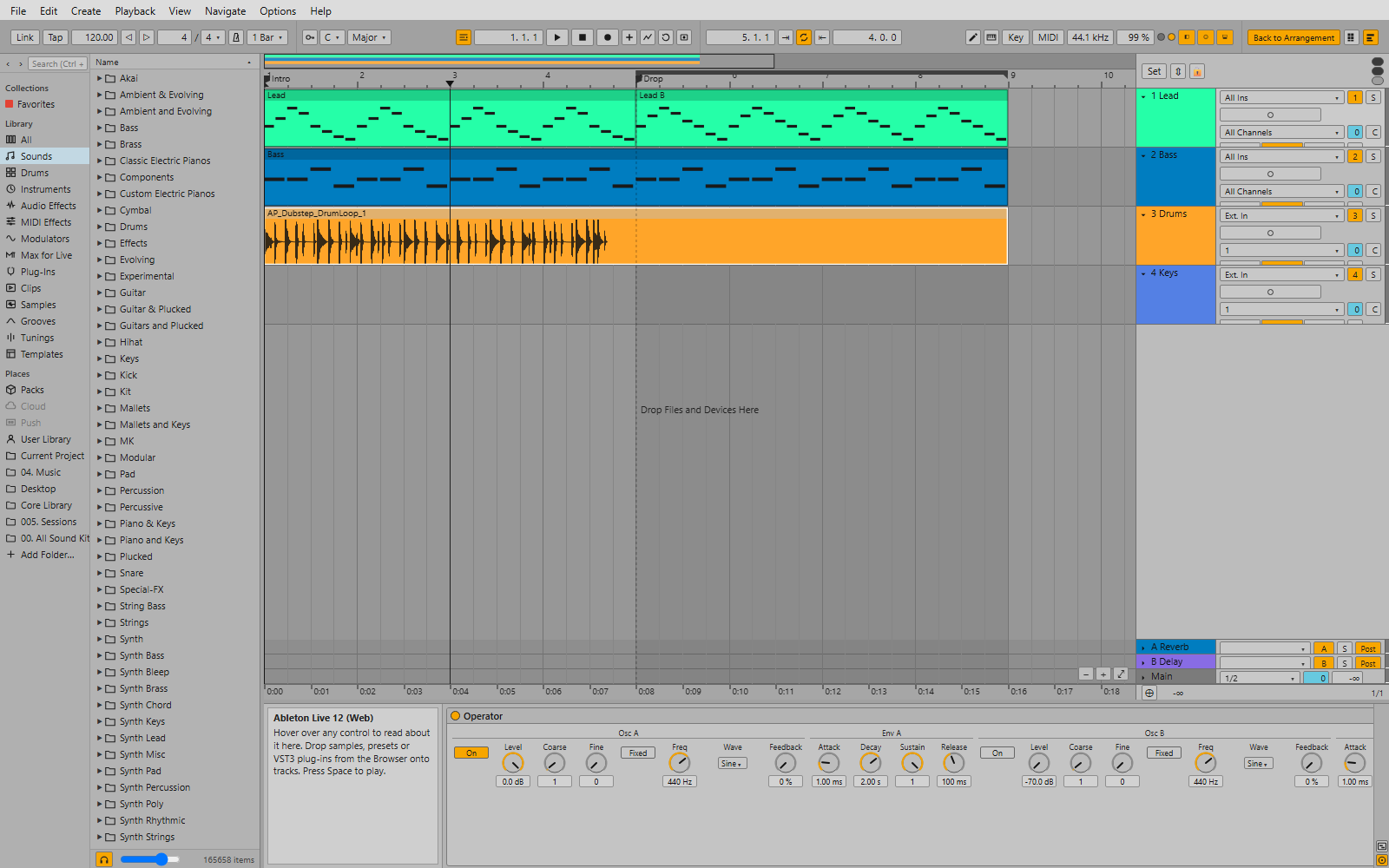
- Menu bar — File, Edit, Create, Playback, View, Navigate, Options, Help.
- Control bar — tempo, tap, nudge, time signature, metronome, global quantization, key / scale · position, play / stop / record, overdub, automation arm, Capture MIDI · loop brace position and length, punch in / out · draw mode, computer MIDI keyboard, CPU, MIDI / MCP activity LEDs, view toggles · Back to Arrangement and the Session / Arrangement selector at the far right.
- Browser (left) — your library and places.
- Main area — the Arrangement or the Session View (Tab switches).
- Detail view (bottom) — the Device View of the selected track or the Clip View of the selected clip (Shift+Tab switches); the Info View on the left explains whatever you hover.

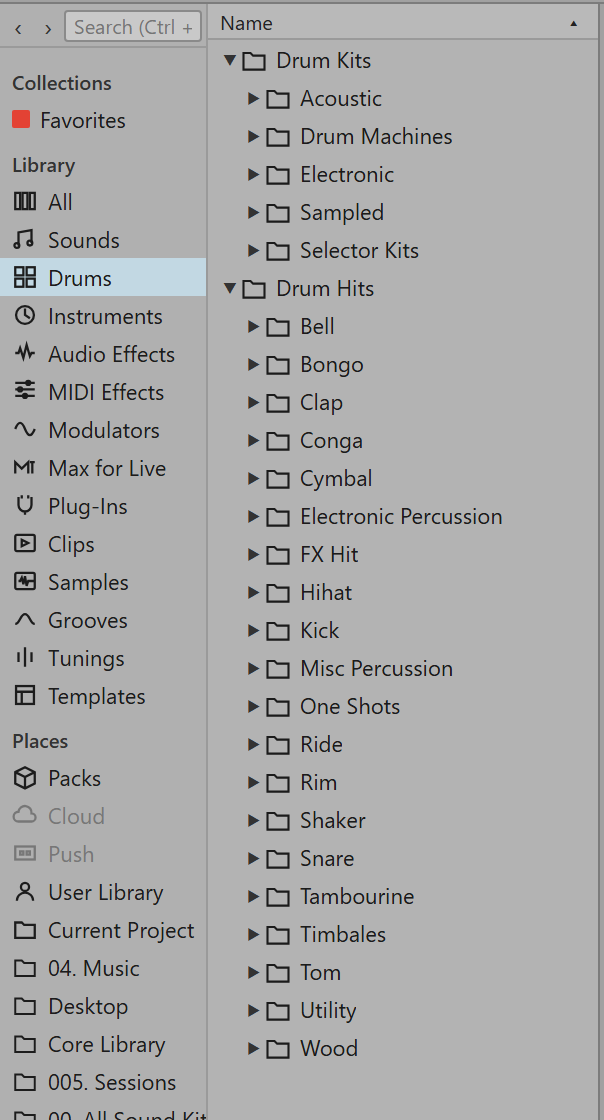
- Library views filter everything by type (Sounds, Drums, Instruments, Audio Effects, MIDI Effects, Plug-Ins, Clips, Samples, Grooves, Templates); Places list Packs, your User Library, the current project and any folder you add with Add Folder….
- Search (Ctrl+F) searches names across the library; results keep their type icons.
- Click a sample to preview it (the headphone button and slider at the bottom control previewing).
- Double-click (or Enter) loads an item onto the selected track; drag it onto a track, into the arrangement at a position, into a clip slot, onto a device chain or a Drum Rack pad.
- Right-click for Load into Selected Track, Create New Track with this, Add to Favorites and Show in Explorer.
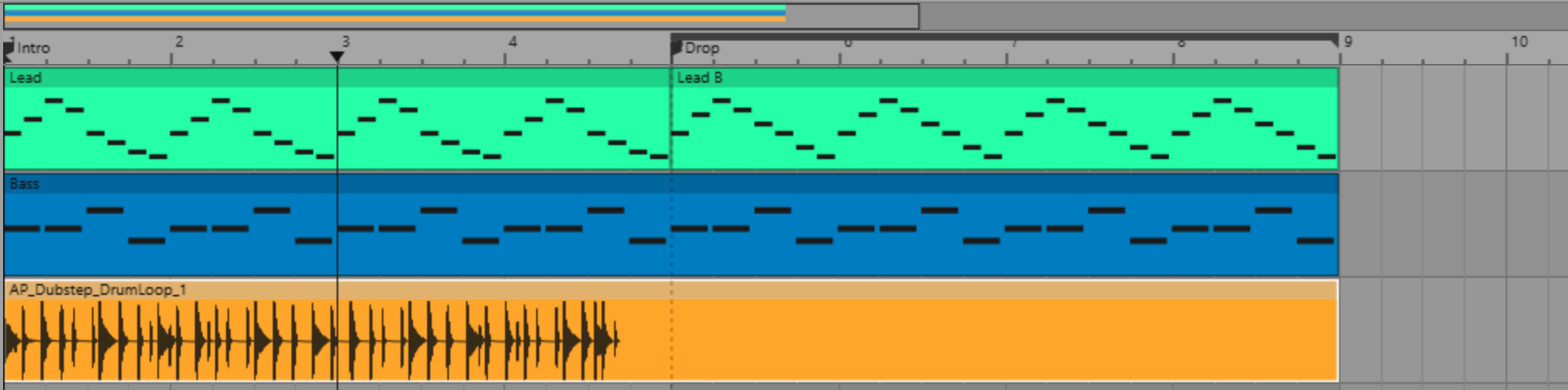
- Playback: Space plays / stops, Shift+Space continues from the stop point, Home / End jump. Click the ruler to set the position; drag the ruler vertically to zoom and horizontally to scroll (or Ctrl+wheel / +/−).
- Loop brace: drag its ends in the ruler, or select time and press Ctrl+L. The loop switch and punch in / out live in the control bar.
- Locators: right-click the ruler → Add Locator; click one to jump there.
- Clips: drag to move (Ctrl+drag copies, Alt disables snapping), drag the edges to trim, drag the top corners of audio clips for fades, Ctrl+E splits at the insert marker, Ctrl+J consolidates, 0 deactivates. Double-click an empty MIDI lane to create a clip; double-click a clip to open it in the Clip View.
- Time selection: drag in a lane, then Insert Silence (Ctrl+I), Delete Time, Duplicate Time (Ctrl+Shift+D), Cut / Paste Time.
- Automation: press A to show automation lanes; click to add breakpoints, drag them, double-click to delete, use Draw Mode (B) for freehand curves. The choosers in the track header pick the parameter.
- Tracks: Ctrl+T audio, Ctrl+Shift+T MIDI, Ctrl+Alt+T return; Ctrl+G groups the selected tracks; drag a track name to reorder; drag the bottom edge of a header to resize.
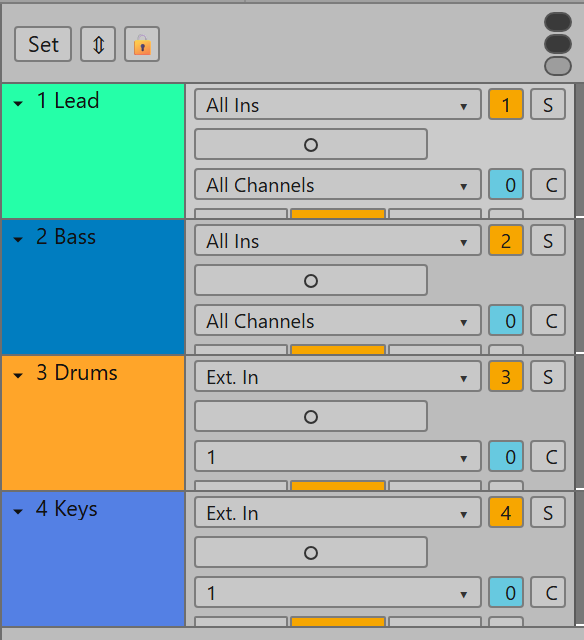
The track header holds (top to bottom) the input chooser, activator / solo / arm, the input channel, volume and pan, monitoring (In / Auto / Off), the peak readout and the output chooser. The I/O, M (mixer) and S (sends) buttons at the top show or hide those sections.
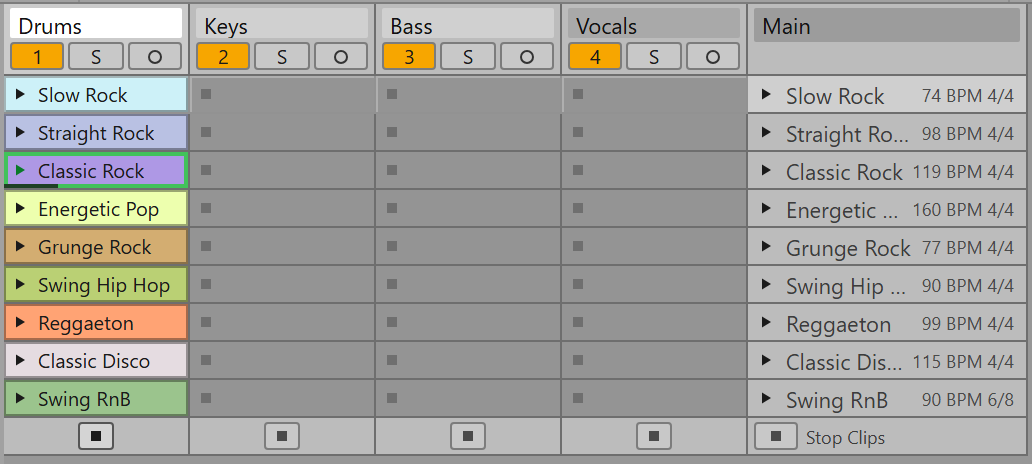
Press Tab (or the grid icon at the top right) to switch to the Session View: tracks run across, scenes run down, and every cell is a clip slot.
- Launch a clip by clicking it. It starts on the next global quantization boundary (the 1 Bar chooser in the control bar) — the slot blinks while queued and shows a green frame and a progress bar while playing. Only one clip plays per track; launching another one replaces it.
- Launch a scene with the ▶ button in the scene column on the right: every clip in that row starts together and tracks with an empty slot in the row stop. A scene can carry its own tempo and time signature (shown next to its name) which are applied when it starts.
- Stop: the ■ buttons at the bottom stop one track, Stop Clips in the Main column stops everything (also at the next quantization boundary). Clicking an empty slot with a stop button stops the track too.
- Back to Arrangement: while a session clip plays, that track's arrangement clips are silenced and the button at the top right turns orange. Press it to let the arrangement play again.
- Create clips: double-click an empty MIDI slot for a 1-bar looping clip (Ctrl+Shift+M does the same for the selected slot); drag samples, clips, MIDI files or presets from the Browser or from your desktop into slots.
- Edit clips: Ctrl+click selects a clip without launching it; double-click opens it in the Clip View. Ctrl+D duplicates into the slot below, Ctrl+X / C / V move and copy clips between slots, Delete empties a slot.
- Right-click a clip for its Launch Mode (Trigger, Gate, Toggle), Launch Quantization, Legato, Loop, colour, rename; right-click a scene for Insert Scene, Capture and Insert Scene (a new row with whatever is playing), Duplicate / Delete Scene, tempo and time-signature overrides and colour. The Create menu has the same scene commands.

Select a clip (arrangement or session) and press Shift+Tab or the clip tab at the bottom right.
- The left panel sets name, colour, start / end / length, loop on/off, loop position / length / offset, and for MIDI clips bank / program and the clip activator. The Notes panel transposes (±1 st, ±Oct), halves / doubles the speed, reverses, inverts, applies Legato, duplicates the loop and quantizes (Ctrl+U).
- Piano roll: double-click to add a note, drag to move, drag the right edge to resize, Shift+click to add to the selection, drag a marquee to select many, Delete removes. The velocity lane below the roll drags velocities. Fold shows only used pitches, Scale highlights the key from the control bar, Draw (B) paints notes, the Grid chooser sets snapping.
- Audio clips show the waveform with Start / End / loop markers to drag, Warp on/off, Seg. BPM (:2 / *2), transpose, detune, gain, fades, Reverse, HiQ and RAM switches, and a Crop button.

Select a track to see its device chain in the Device View. Drag instruments and effects from the Browser into the chain (or double-click them), drag devices to reorder, click the power button to bypass, the title to select, and right-click for Save Preset, duplicate, rename, delete. Knobs drag vertically (Shift for fine control, double-click to reset); value boxes can be typed into.
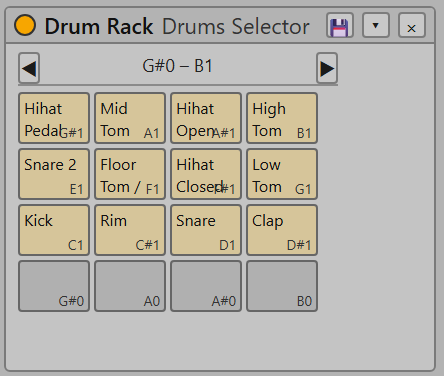
Drum Racks show their pads with a selector for the pad range; drop samples or instruments on pads. Instrument / Audio Effect / MIDI Effect Racks show their chains and macro knobs.
Built-in devices
| Type | Devices |
|---|---|
| Audio effects | EQ Eight, EQ Three, Channel EQ, Compressor, Glue Compressor, Gate, Limiter, Multiband Dynamics, Reverb, Delay, Auto Filter, Auto Pan, Chorus-Ensemble, Phaser-Flanger, Saturator, Overdrive, Redux, Utility, Erosion, Drum Buss, Amp, Cabinet, Pedal, Beat Repeat, Spectrum |
| Instruments | Simpler, Sampler, Drum Rack, Impulse, Operator, Analog, Wavetable, Drift |
| MIDI effects | Arpeggiator, Chord, Pitch, Random, Scale, Velocity, Note Length |
| Racks | Instrument Rack, Audio Effect Rack, MIDI Effect Rack (chains, macros, macro mappings) |
Live devices without a web implementation (Collision, Electric, Tension, Meld, Corpus, Grain Delay, Roar, Shifter, Spectral devices, Vocoder, Looper, Max for Live devices …) load as pass-through placeholders that keep their settings for saving. Hybrid Reverb is mapped to Reverb.
With Python 3.12 and pedalboard installed, the Plug-Ins view lists every VST3 plug-in. Insert one like any device. Plug-ins are not real-time: a track that contains VST3 devices is rendered through the plug-ins (automatically when playback starts, or with Render on the device / Playback → Render VST3 chains now) and the rendered audio plays back; the track shows VST3 ready / VST3 stale. Open editor opens the plug-in's own window on the server computer and captures its state when you close it.
Arm a track (the record button in its header; Ctrl+click arms several), set Monitoring to In or Auto, press F9 (or the record button) and then play. Audio is recorded into the project's Samples/Recorded folder; MIDI becomes a clip (with MIDI Arrangement Overdub notes are added to an existing clip). The metronome's right-click menu sets a count-in. Capture MIDI (Ctrl+Shift+C) turns the last 60 seconds of notes you played — without recording — into a clip. Press M to play notes from the computer keyboard (A–L, Z / X change the octave); Web MIDI inputs are picked up automatically.
- Save (Ctrl+S) writes an Ableton-style project folder
<Name> Project/<Name>.alswithSamples/,Backup/(last 10 saves) andExports/next to it. Collect All and Save copies external samples into the project. - Opening a template or any set inside Ableton's libraries creates an untitled copy, so factory content is never overwritten.
- Export Audio (Ctrl+Shift+R) renders the mix, a range or a single track to 24-bit WAV; Export MIDI Clip writes a
.midfile. - Export Ableton-compatible Live Set… writes a copy of the set without the app's private data block (best effort — Live is strict about mandatory elements, so treat it as "for tools" until verified with Live).
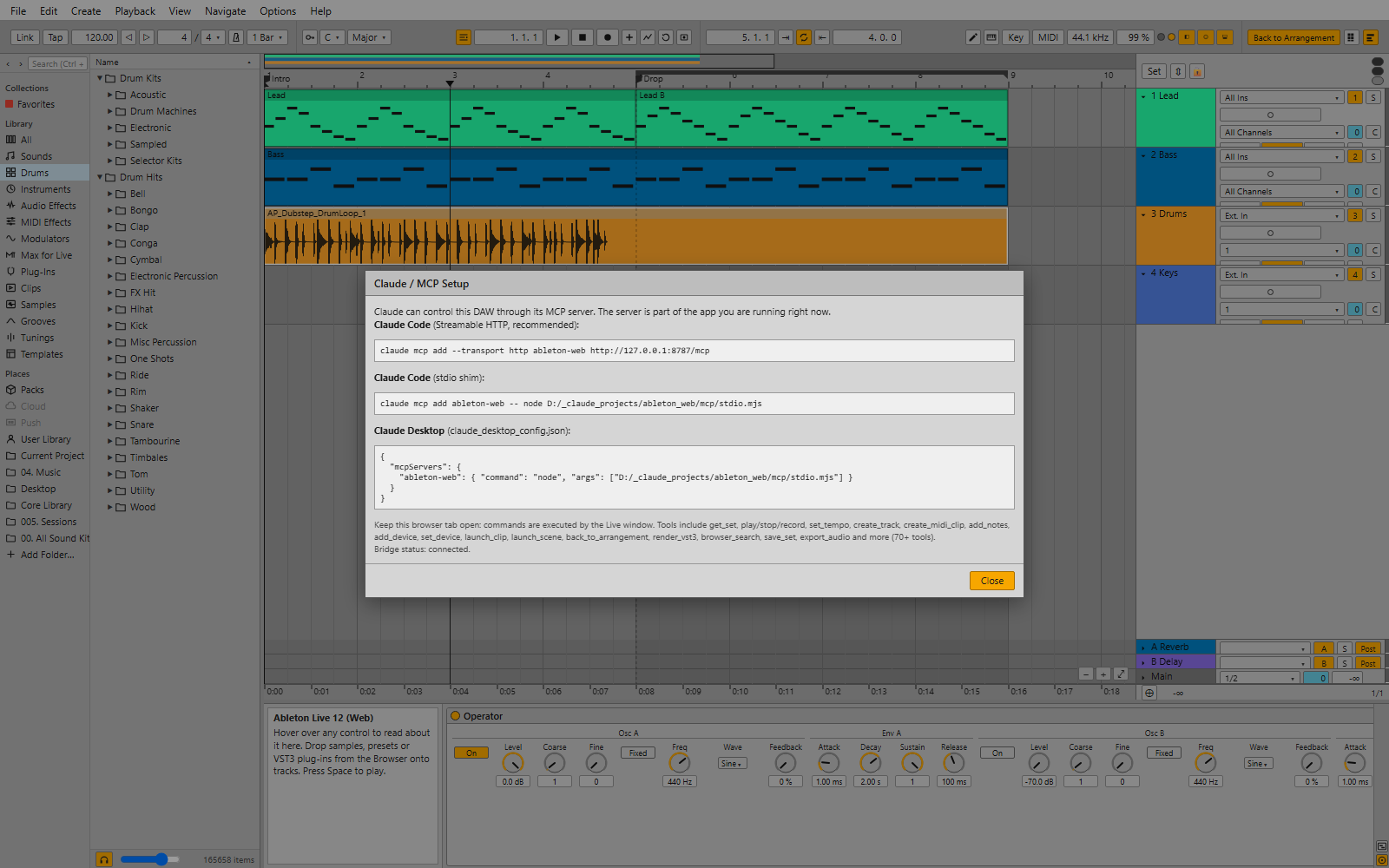
Once connected (see installation step 6), Claude sees the whole set through get_set and can do almost everything the UI can. Beats are quarter notes and bar 1 starts at beat 0; tracks, clips, devices and scenes accept ids, 1-based numbers or names.
Example prompts:
- "Create a MIDI track with an Operator, write a 2-bar bass line in C minor at 124 BPM and add EQ Eight with a low cut at 40 Hz."
- "Put a 4-bar hi-hat pattern in scene 2 of the Drums track and launch the scene."
- "Stop all clips, go back to the arrangement and export bars 1–16."
All 72 MCP tools
| Area | Tools |
|---|---|
| State | get_set get_transport get_track get_clip get_device get_scene screenshot |
| Transport | play stop record set_position set_tempo set_time_signature set_loop set_metronome set_scale |
| Set | new_set save_set load_set list_sets export_audio undo redo |
| Tracks | create_track group_tracks ungroup_tracks delete_track duplicate_track rename_track set_track move_track |
| Clips | create_midi_clip create_audio_clip delete_clip move_clip resize_clip set_clip duplicate_clip split_clip consolidate |
| Session View | launch_clip stop_clip launch_scene stop_all_clips back_to_arrangement create_scene delete_scene set_scene set_session_clip |
| Notes | add_notes set_notes remove_notes quantize_notes transpose_notes |
| Devices | list_devices add_device remove_device set_device move_device render_vst3 open_plugin_editor |
| Automation | set_automation get_automation clear_automation |
| Browser | browser_search browser_list preview_sample load_preset |
| View | select insert_locator zoom_to set_view |
Full list
| Keys | Action |
|---|---|
| Space / Shift+Space | Play–stop / continue from the stop point |
| F9 | Record |
| Tab / Shift+Tab | Session ⇄ Arrangement / Clip ⇄ Device view |
| Ctrl+T / Ctrl+Shift+T / Ctrl+Alt+T | Insert audio / MIDI / return track |
| Ctrl+G / Ctrl+Shift+G | Group / ungroup tracks |
| Ctrl+Shift+M | Insert MIDI clip (in the selected slot in the Session View) |
| Ctrl+D | Duplicate (clip, notes, device, scene clip → slot below) |
| Ctrl+E / Ctrl+J | Split / consolidate |
| Ctrl+L | Loop selection / toggle loop |
| Ctrl+I / Ctrl+Shift+Delete / Ctrl+Shift+D | Insert silence / delete time / duplicate time |
| Ctrl+U / Ctrl+Shift+U | Quantize / quantize settings |
| Ctrl+R | Rename |
| Ctrl+Z / Ctrl+Y | Undo / redo |
| Ctrl+X / C / V, Ctrl+A, Delete | Cut / copy / paste, select all, delete |
| 0 | Deactivate clip or notes |
| B / A / M | Draw mode / automation mode / computer MIDI keyboard |
| Ctrl+Shift+C | Capture MIDI |
| Home / End, ← → ↑ ↓ | Go to start / end, nudge notes / select tracks |
| + / − , Ctrl+wheel | Zoom |
| Ctrl+S / Ctrl+Shift+S / Ctrl+O / Ctrl+N | Save / save as / open / new |
| Ctrl+Alt+B / Ctrl+Alt+L / Shift+? | Toggle Browser / Detail view / Info view |
| Alt while dragging · Ctrl while dragging clips | Disable snapping · copy |
- Session View: clip follow actions are read and written but not executed; Repeat launch mode behaves like Gate; no session mixer strip under the grid, no crossfader, no recording into clip slots, no key / MIDI mapping of clip buttons. Scene tempo overrides become the song tempo (no automatic return).
- Warp modes other than Re-Pitch are not implemented: warped clips follow the tempo by re-pitching.
- VST3 plug-ins are not real-time (see above); web devices placed between two VST3 devices are applied after the plug-ins; VST3-frozen tracks play launched session clips through the live device chain.
.alsfiles written here contain an extra<AbletonWeb>element with the complete web model; the Ableton-compatible export omits it but has not been verified inside Live.- Consolidate renders audio tracks to a new clip (clip settings only) and flattens MIDI tracks into one clip.
- Groove pool, tunings, take lanes, MPE and Push integration are not implemented.
- Native file / folder pickers and Show in Explorer exist on Windows only.
server/            Node (ESM) server: HTTP API, WebSocket bridge, MCP endpoint
  index.mjs        routes & startup          library.mjs   library scanner / browser views
  sessions.mjs     project folders & saving  ableton-xml.mjs / xml.mjs  .als/.adv/.adg reader-writer
  vst3.mjs         pedalboard sidecar bridge vst3_host.py / vst3_editor.py  Python sidecar
  bridge.mjs       command bridge            mcp-tools.mjs  MCP tool definitions
  test_ableton_xml.mjs   reader/writer test suite (run with npm test)
mcp/stdio.mjs      stdio MCP shim (proxies to the running server)
public/            the app (vanilla ES modules, no build step)
  js/model/set.js  the Live Set model        js/engine/engine.js  transport, scheduler, mixer, recording, offline render
  js/engine/devices/  device DSP (specs.js is the parameter contract)
  js/ui/           control bar, browser, arrangement, session view, track headers, device view, clip view, dialogs …
tools/screenshots.mjs   regenerates docs/screenshots with headless Chrome (npm run screenshots)
core_lib/          put Ableton's Core Library here when Live is not installed (git-ignored)
projects/          default projects folder (git-ignored)      data/   caches, temp files (git-ignored)
config.json        paths & options (created on first run, git-ignored)
npm test               # parses every Core Library template, 30+ presets, racks and clips, round-trips a set
npm run screenshots    # regenerates docs/screenshots/*.png from a running server (needs Chrome or Edge)
Every edit goes through app.edit() (undo snapshots); the look follows Live 12's light theme in public/css/live.css. Restart the server after changing server/*.mjs; the browser picks up public/ changes on reload.