
Personalized VIM/NeoVim configurations
The same vimrc drives both editors; it branches on has('nvim') only where
the two genuinely differ (clipboard register, undo directory, truecolor
termcap). Tested on NeoVim 0.12 and Vim 9.1.
Install NeoVim or Vim first if you haven't done so.
NeoVim
git clone https://github.com/bencao/vimo.git ~/.vimo

~/.vimo/install_neovim.sh
VIM
git clone https://github.com/bencao/vimo.git ~/.vimo

~/.vimo/install_vim.sh
For system-clipboard integration your Vim needs to be built with +clipboard
(check with vim --version | grep clipboard). The macOS system Vim qualifies;
brew install vim also works.
External tools the plugins use:
brew install ripgrep universal-ctags fzf node
None are required to start vimo, and each install script ends by running
check_prereqs.sh, which reports what is missing and which feature it costs
you. Two notes: macOS ships a BSD ctags that rejects -R, so <leader>r
and vim-gutentags both need Universal Ctags (gutentags stays disabled until
it is installed), and ALE's Prettier fixer needs node.
NeoVim
~/.vimo/uninstall_neovim.sh
rm -rf ~/.vimo
VIM
~/.vimo/uninstall_vim.sh
rm -rf ~/.vimo
- [normal mode] Space then h open vimo help in VIM
- [normal mode] Space then f quick jump to any words in the screen
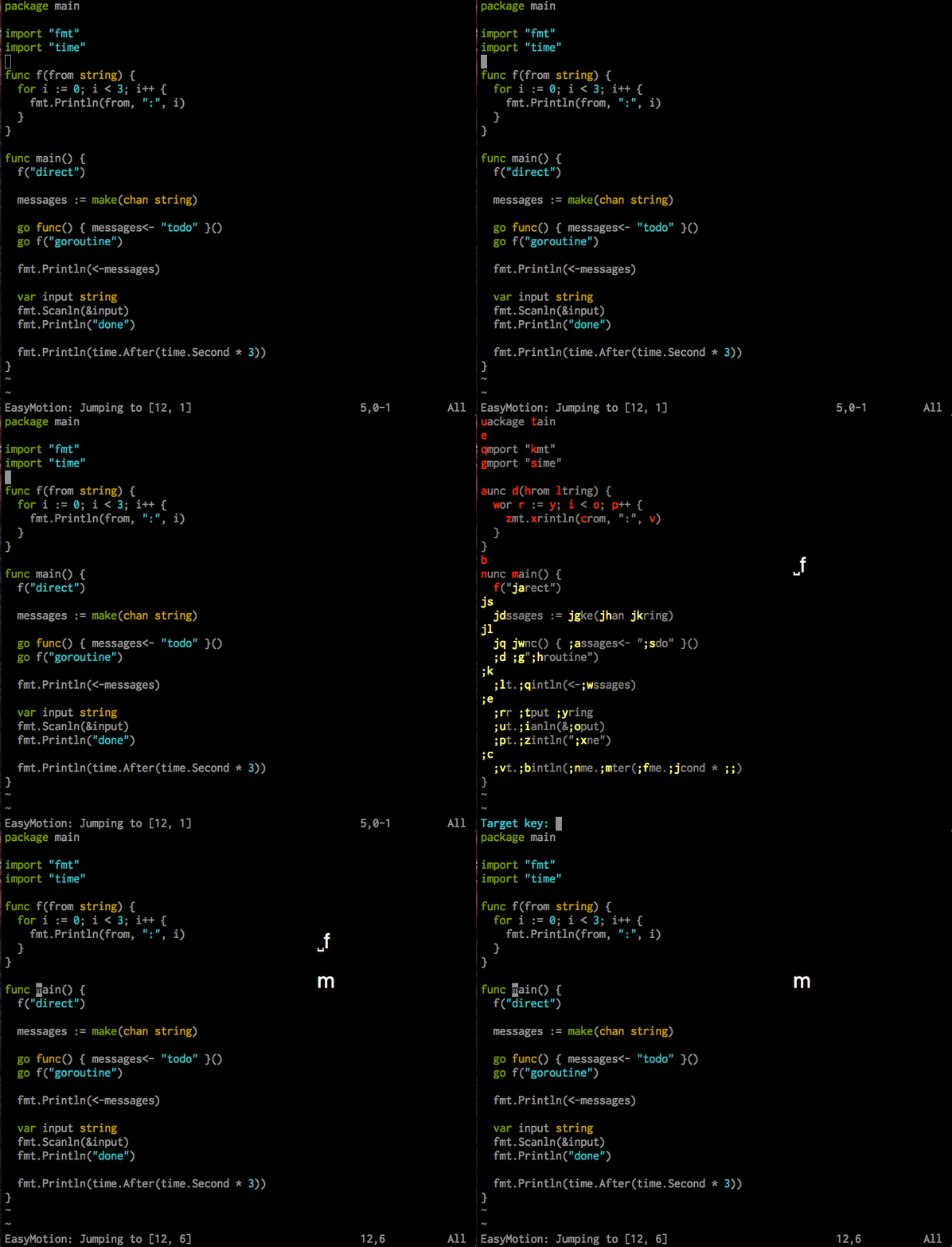
- [normal mode] Space then r rebuild ctags for current directory
- [normal mode] Ctrl + ] jump to definition, need to rebuild ctags first
- [normal mode] Ctrl + o jump back to last cursor position
- [normal mode] Ctrl + i jump back to next cursor position
- [normal mode] Space then Space jump to and jump back between the current editing file and the last edited file
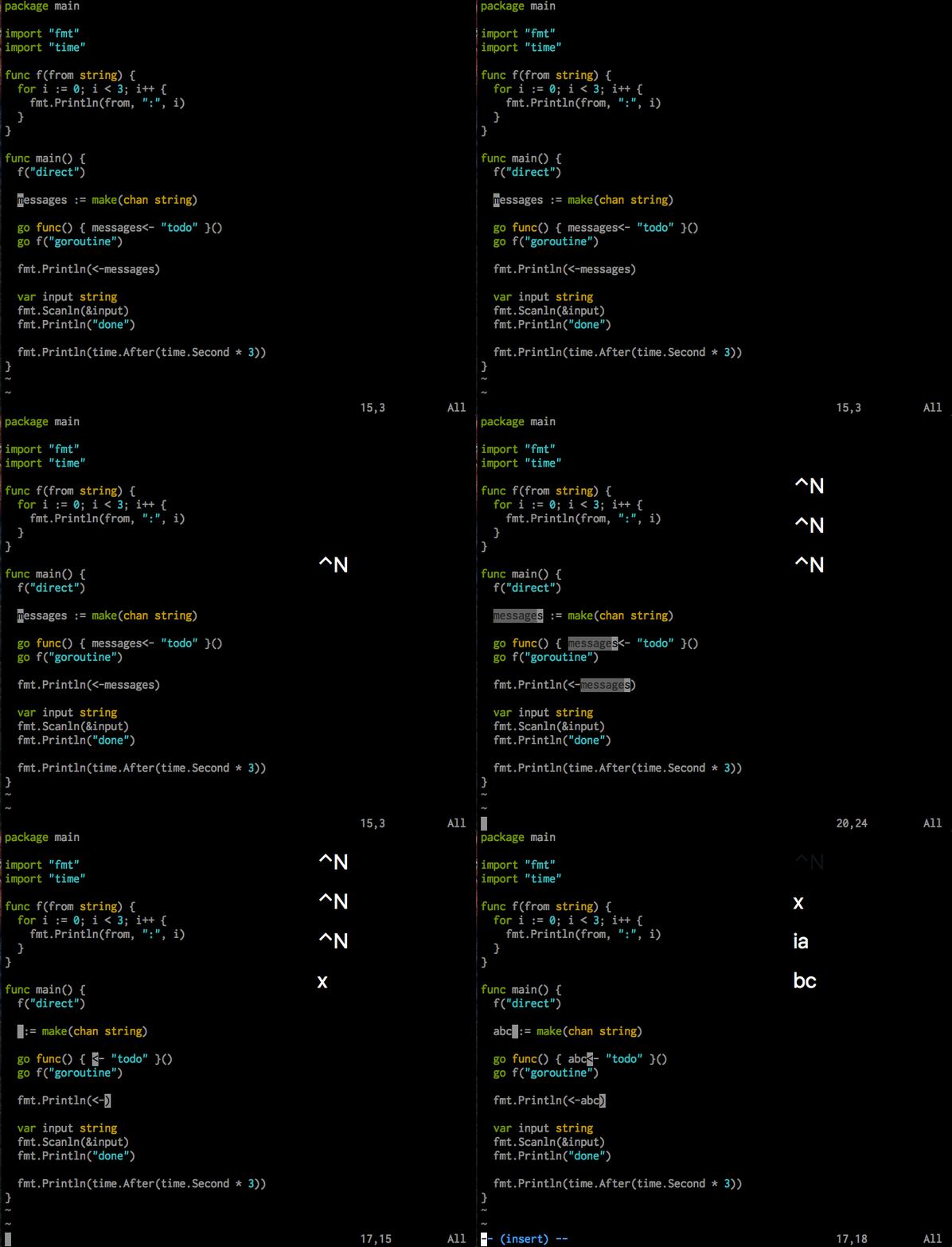
- [normal mode] Ctrl + n press multiple times to select multiple current word and edit all of them at the same time
- [visual mode] g then c toggle comment
- [insert mode] Tab auto complete with next candidate
- [insert mode] Shift + Tab auto complete with previous candidate
- [normal/visual mode] Space then p format the file (ALE; uses Prettier for JS/TS/CSS/JSON/YAML/Markdown, gofmt for Go, rustfmt for Rust)
- [visual mode] Enter then = align selected lines by =
- [visual mode] Enter then : align selected lines by :
- [normal mode] Space then b fuzzy-find files (fzf), use Ctrl + j/Ctrl + k to move between candidates
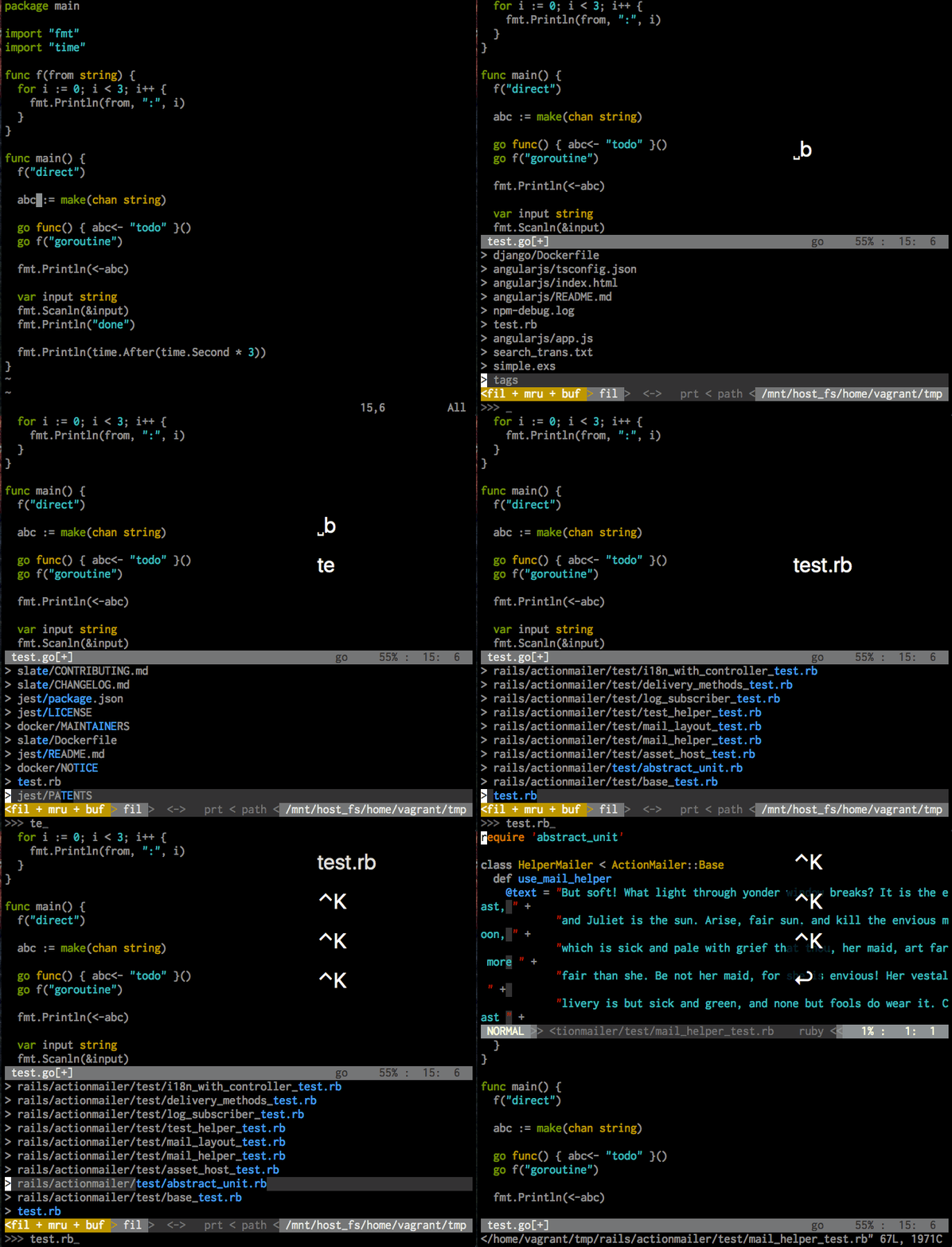
- [normal mode] Space then B fuzzy-find open buffers
- [normal mode] Space then l fuzzy-find lines in the current buffer
- [normal mode] Space then a search text patterns in directories using Rg (ripgrep), the result will be shown in a Quickfix window
- [normal mode] Space then k search the word under the cursor (whole words only), same Quickfix window
- [normal mode] </kbd> same as Space then a
ALE provides these; each needs the relevant linter or language server on PATH.
- [normal mode] Space then d show the full diagnostic under the cursor
- [normal mode] Space then g go to the definition under the cursor
- [normal mode] ] then w / [ then w next/previous diagnostic
- [insert mode] Tab completes from the language server when one is running, otherwise from keywords in the buffer
- [normal mode] Space then u toggle the undo history tree
- [normal mode] Space then n run the test nearest the cursor
- [normal mode] Space then N run every test in the file
- [normal mode] Space then ? show the available leader bindings
From vim-unimpaired, plus a few from other plugins:
- [normal mode] ]/[ then q next/previous quickfix entry (pairs with Space then a)
- [normal mode] ]/[ then b next/previous buffer
- [normal mode] ]/[ then c next/previous git hunk (gitgutter)
- [normal mode] y then o then an option letter toggles that option, e.g. yow for wrap
- [normal mode] Space then t toggle directory tree, revealing the current file
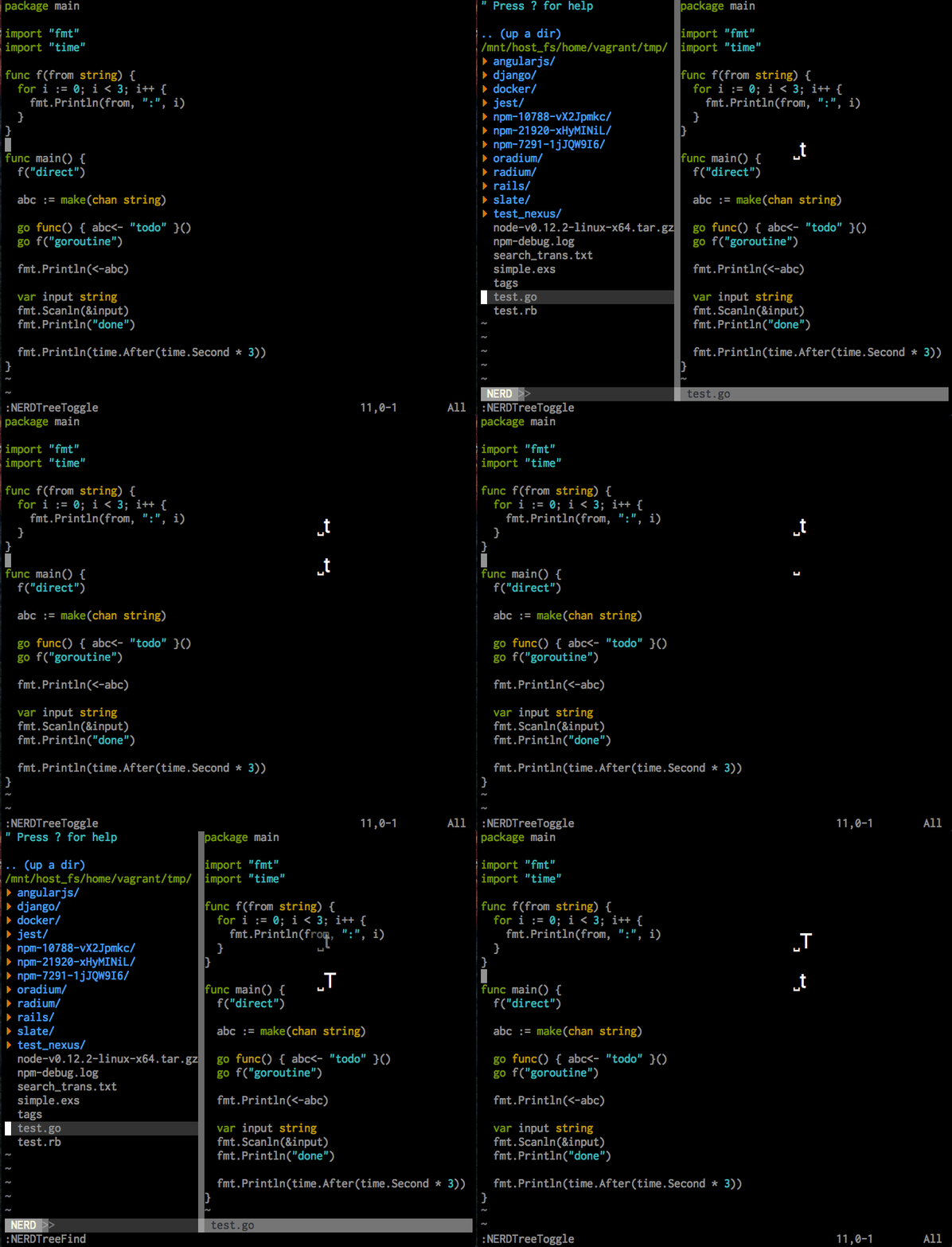
- [normal mode] Space then T toggle directory tree
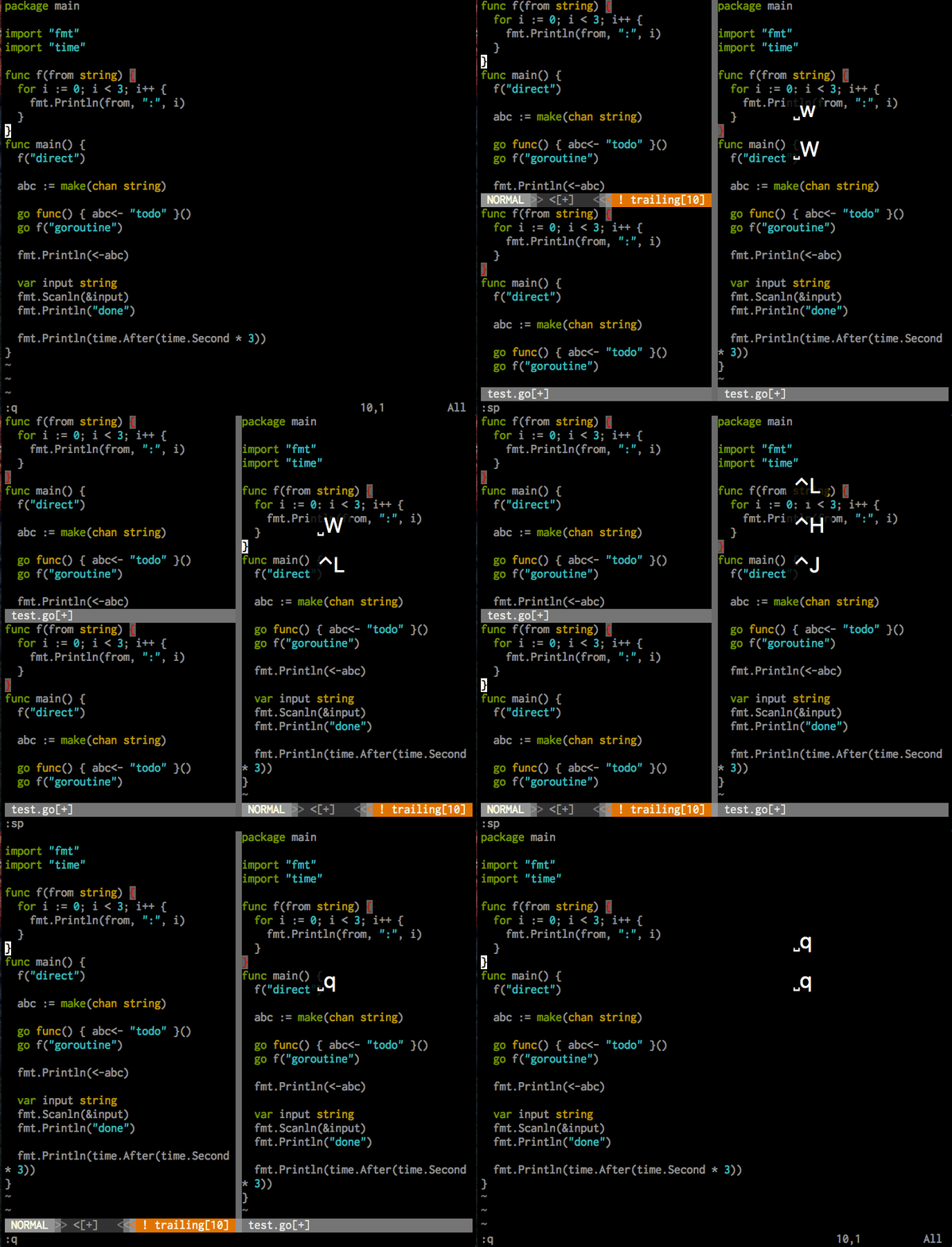
- [normal mode] Space then s split a new vertical window to the right
- [normal mode] Space then S split a new horizontal window below
- [normal mode] Space then o toggle window/fullscreen
- [normal mode] Space then w shortcut for :w
- [normal mode] Space then W shortcut for :w!
- [normal mode] Space then q shortcut for :q
- [normal mode] Space then Q shortcut for :q!
- [normal mode] Ctrl + h/Ctrl + j/Ctrl + k/Ctrl + l move left/up/down/right among windows
:mapall mode key mappings:nmapnormal mode key mappings:vmapvisual mode key mappings:imapinsert mode key mappings