Repository navigation
Create Spectral Warehouse SQLite databases
In this wiki, we will go through the necessary steps to create our very own Spectral Warehouse SQLite database. Such a database can be used to quickly create Prosit-predicted spectral libraries in MSLibrarian without having to submit jobs to a prediction server every time, or bother installing Prosit locally on a machine with a CUDA-enabled graphics card. As a demonstration, we will create a SQLite database for the the entire reviewed proteome of Drosophila Melanogaster (Fruit fly) that has been downloaded as a FASTA from Uniprot/Swissprot.
Click to expand!
To create a SQLite database, we begin by defining some parameters:
fasta = "D:/Databases/Uniprot_Swissprot_FruitFly_210806/uniprot_swissprot_drosophila_melanogaster_210806.fasta"
chargeRange = c(2,3) # Allowed precursor charges. DO NOT CHANGE THIS!
ceRange = c(20,40) # Set the range of Prosit collision energies for which fragment ion intensities will be predicted
prefix = "drosophila_melanogaster" # Prefix of input CSV files to be uploaded to the Prosit online tool.
outputFolder = "D:/Data_PROSIT/Input/Fruitfly/210806/" # Path to folder where Prosit input files will be added.
To create input files for the Prosit prediction server, we run the function MSLibrarian::make.prosit.csv() after adding the above specified parameters
as arguments. Apart from the Prosit input files, a RData file is added to the output folder with metadata for the SQLite database to be created.
library(MSLibrarian)
make.prosit.csv(fasta = fasta, chargeRange = chargeRange, ceRange = ceRange, prefix = prefix, outputFolder = outputFolder)
Click to see the function output log!
[1] "Load FASTA..."
[1] "Importing FASTA database: D:/Databases/Uniprot_Swissprot_FruitFly_210806/uniprot_swissprot_drosophila_melanogaster_210806.fasta..."
[1] "Database contains: 5058 proteins..."
[1] "Adding protein data to slot: Proteins of the MSLibrarian object..."
[1] "Assuming all Cysteines are Carbamidomethylated"
[1] "In-silico digestion of proteins into peptides using trypsin"
[1] "Calculating masses..."
[1] "Done!"
[1] "Filter peptides..."
[1] "Finding duplicated peptides..."
[1] "Creating precursor data..."
[1] "Removing duplicated sequences..."
[1] "Calculating m/z values..."
[1] "Number of unique precursors: 200100"
[1] "Number of unique predictable precursors within M/Z range (0 - Inf): 200100"
[1] "Preparing for writing files..."
[1] "writing: drosophila_melanogaster_digest_ce20.csv"
[1] "writing: drosophila_melanogaster_digest_ce21.csv"
[1] "writing: drosophila_melanogaster_digest_ce22.csv"
[1] "writing: drosophila_melanogaster_digest_ce23.csv"
[1] "writing: drosophila_melanogaster_digest_ce24.csv"
[1] "writing: drosophila_melanogaster_digest_ce25.csv"
[1] "writing: drosophila_melanogaster_digest_ce26.csv"
[1] "writing: drosophila_melanogaster_digest_ce27.csv"
[1] "writing: drosophila_melanogaster_digest_ce28.csv"
[1] "writing: drosophila_melanogaster_digest_ce29.csv"
[1] "writing: drosophila_melanogaster_digest_ce30.csv"
[1] "writing: drosophila_melanogaster_digest_ce31.csv"
[1] "writing: drosophila_melanogaster_digest_ce32.csv"
[1] "writing: drosophila_melanogaster_digest_ce33.csv"
[1] "writing: drosophila_melanogaster_digest_ce34.csv"
[1] "writing: drosophila_melanogaster_digest_ce35.csv"
[1] "writing: drosophila_melanogaster_digest_ce36.csv"
[1] "writing: drosophila_melanogaster_digest_ce37.csv"
[1] "writing: drosophila_melanogaster_digest_ce38.csv"
[1] "writing: drosophila_melanogaster_digest_ce39.csv"
[1] "writing: drosophila_melanogaster_digest_ce40.csv"
[1]"Saving SQLite metadata to:D:/Data_PROSIT/Input/Fruitfly/210806//drosophila_melanogaster_metadata.RData"
Click to expand!
Go to the Prosit online tool: https://www.proteomicsdb.org/prosit/ and click on the PREDICT tab and then select the SPECTRAL LIBRARY tab. After reading through the information under Settings, click on the NEXT tab.
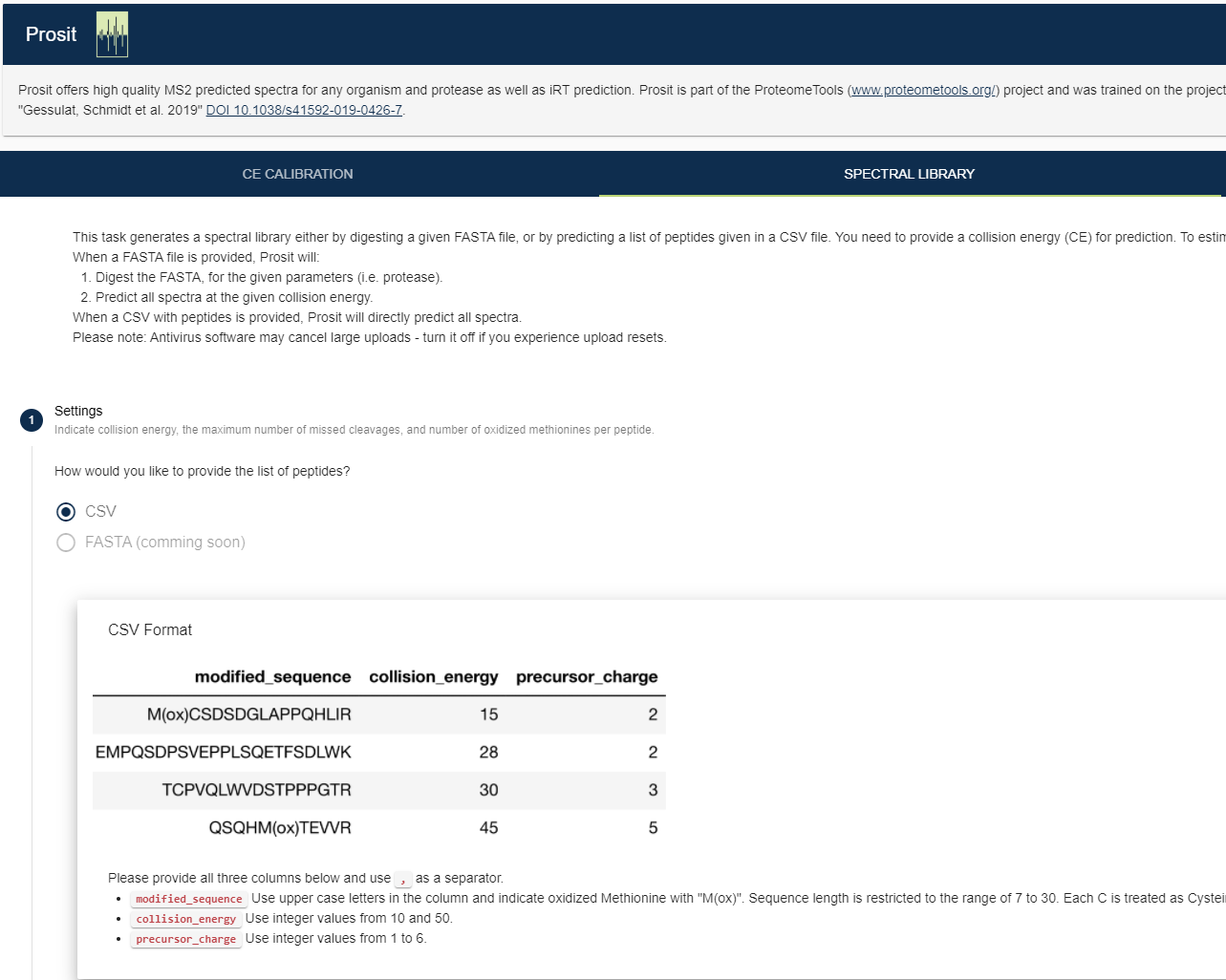
Then click on the blue upload button and navigate to the folder where the input files were added: D:/Data_PROSIT/Input/Fruitfly/210806/

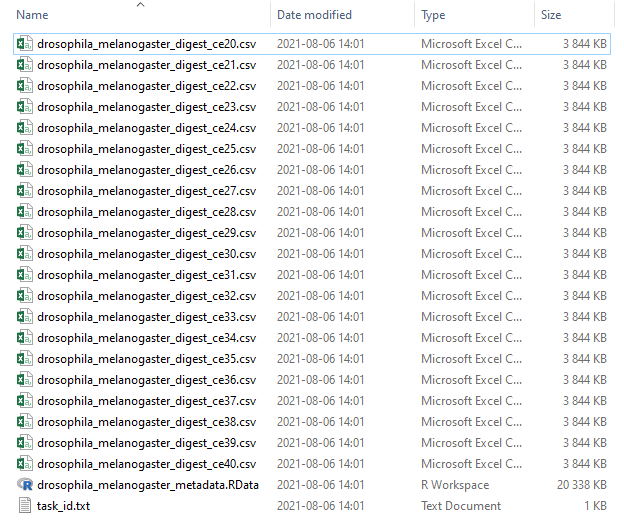
Select the first Prosit input file (drosophila_melanogaster_digest_ce20.csv) and click Open to upload it. Once uploading is complete, click on the Next tab

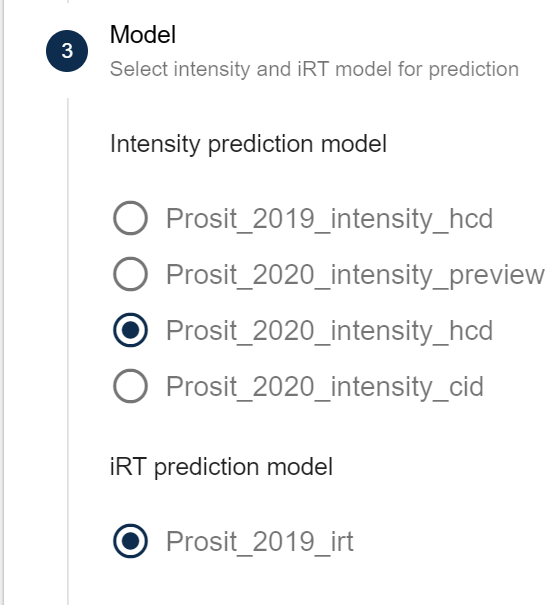
Under Model choose Prosit_2020_intensity_hcd as intensity prediction model (or choose Prosit_2020_cid if your instrument method used CID for fragmentation). For iRT prediction model select Prosit_2019_irt and then click NEXT.
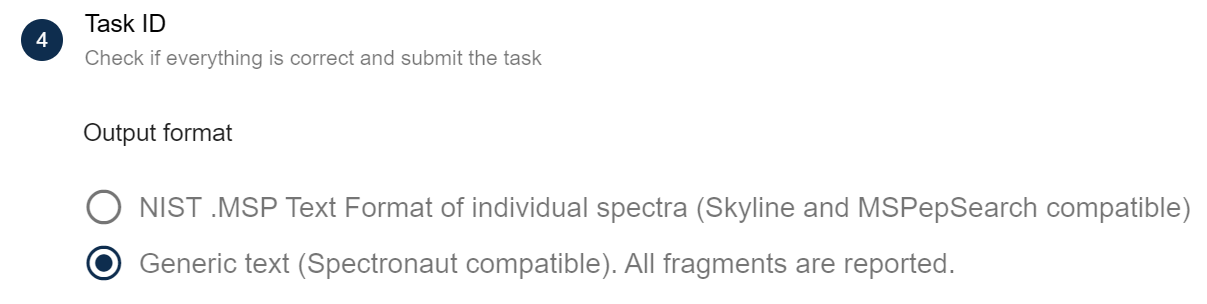
Under TASK ID choose the format Generic text (Spectronaut compatible) format. Do not choose the MSP-format. It is incompatible with MSLibrarian.
To submit a job to the prediction server, click on the SUBMIT-button. A Task ID for the submitted job will be shown in the next window.
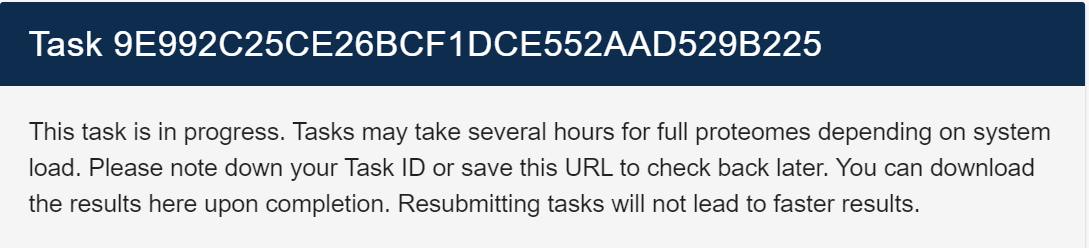
Copy the Task ID and then open the task_id.txt file located in the folder with Prosit input files (D:/Data_PROSIT/Input/Fruitfly/210806/task_id.txt). Next to the name of the submitted Prosit input csv file, paste and replace the NA value with the Task ID that you copied.
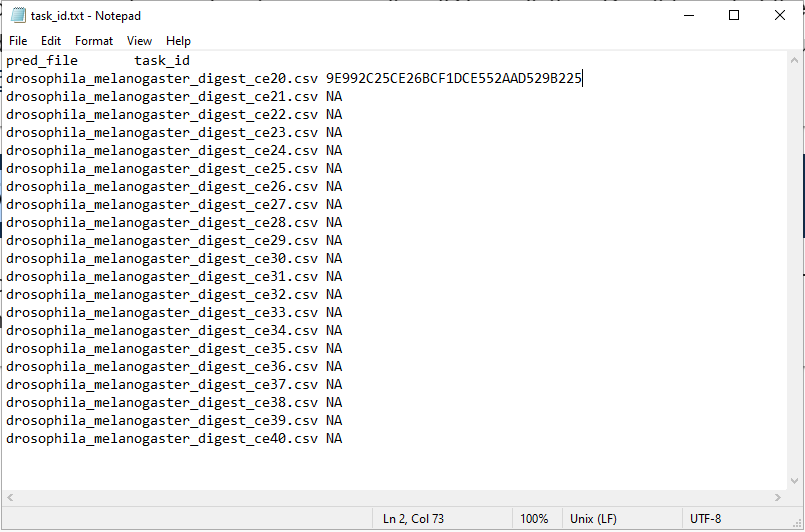
Repeat the steps above to submit the remaining 20 Prosit input CSV (drosophila_melanogaster_digest_ce21.csv, _22.csv, ...,_40.csv). Thus, the Task ID text file (task_id.txt) should look similar to the example below once all jobs have been submitted to the prediction server.
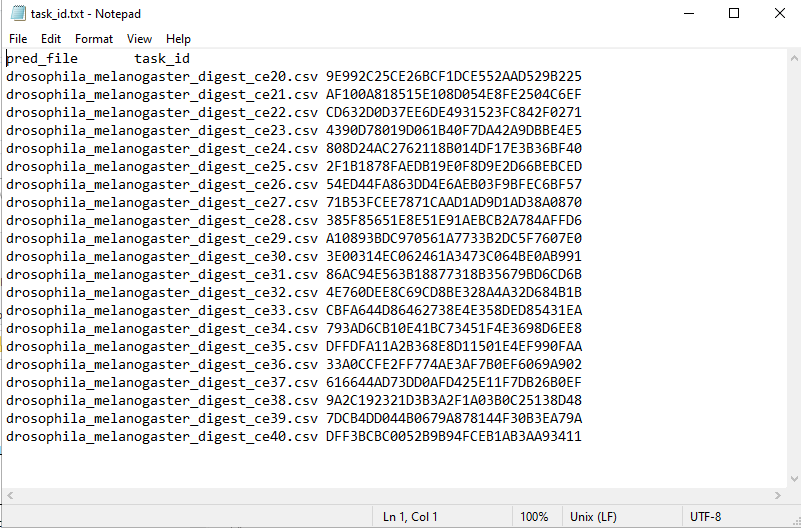
Save the task_id.txt file.
The prediction of spectral libraries for entire proteomes may take between 1 to 2 days to complete. In order to be sure that all predictions are made, it is recommended to wait 2 days before continuing building the SQLite database. Alternatively, the Task ID of the last submitted job may be checked on the Prosit website (https://www.proteomicsdb.org/prosit/). To do this, click on the STATUS tab in the top right corner and paste the Task ID of the last submitted job.
If the job is completed, there should be a message on the next page saying: Your files are ready! (NB! Do not click the DOWNLOAD button) If this is the case, all previous jobs should be completed and the SQLite database can be built without any problems.

Click to expand!
Once all submitted prediction jobs are completed, it is possible to create the SQLite database. First, we will define some parameters:
prediction_folder = "D:/Data_PROSIT/Libraries/Fruitfly/210806/" # The SQLite subfolder with the SQLite database (*.sqlite) will be added to this folder
task_id = "D:/Data_PROSIT/Input/Fruitfly/210806/task_id.txt" # absolute path to the Task ID file
sqlite = "drosophila_melanogaster_prosit_hcd_intensity_2020_irt_2019.sqlite" # Preferred name of the SQLite database"\
Then we run the following MSLibrarian function to create the SQLite database:
make.prediction.db(prediction_folder = prediction_folder, task_id = task_id, sqlite = sqlite)
After completion, there should be a subfolder named SQLite in the specified prediction_folder. Inside the subfolder, the prediction SQLite database
can be found ("drosophila_melanogaster_prosit_hcd_intensity_2020_irt_2019.sqlite")