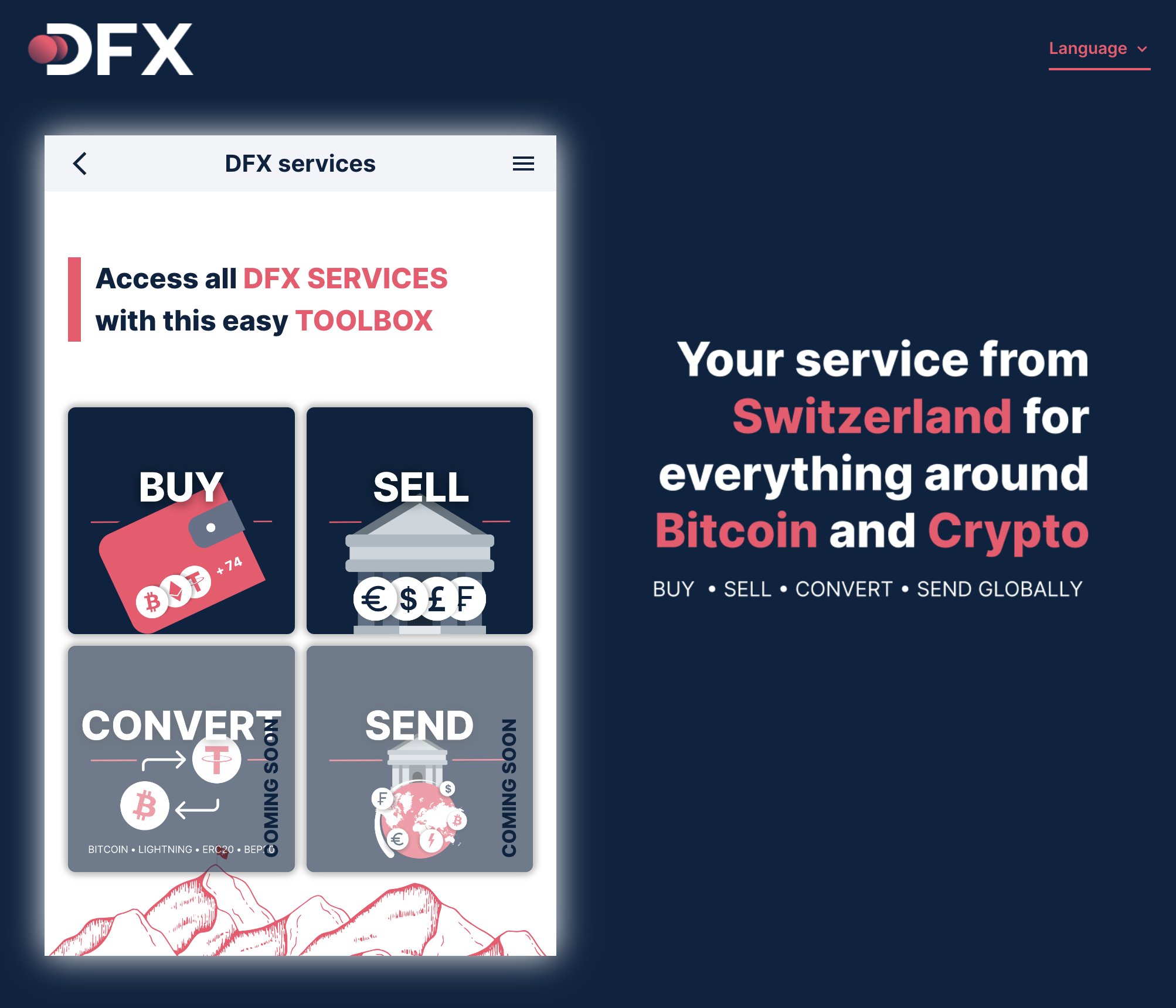
Reusable web widget to buy, sell and swap crypto assets
- Node.js (LTS version) - Download
- DFX API running locally - see API repository
# 1. Start the API first (in the api repository)
cd ../api
docker-compose up -d
npm run start:local

# 2. Then start the services (in this repository)
cd ../services
npm install
npm run start
The services will be available at http://localhost:3001
Copy .env.sample to .env and adjust as needed:
cp .env.sample .env| Variable | Default | Description |
|---|---|---|
PORT |
3001 | Services port |
REACT_APP_API_URL |
http://localhost:3000 | API URL |
TEST_SEED |
- | Test wallet mnemonic (E2E tests) |
TEST_EMAIL |
- | Test email (E2E tests) |
| Command | Description |
|---|---|
npm start |
Start with local API (from .env) |
npm run start:dev |
Start with dev API |
npm run build |
Build for production |
npm run build:dev |
Build for dev environment |
npm run test:e2e |
Run E2E tests against dev API |
npm run test:e2e:local |
Run E2E tests against local API |
DFX Services can be integrated in three different ways,
- as a standalone page (with browser redirect)
- in an Iframe (not recommended)
- using a web component
- as a React component (NPM package)
and supports two different login modes,
- direct login (session is provided directly on opening)
- wallet login (the user connects a wallet to DFX services).
Content
DFX services can be integrated using a browser redirect to app.dfx.swiss with the desired parameters (see below). For standalone usage, the redirect-uri parameter should be provided. On cancel or completion, the user will be redirected to this URI (see redirect).
DFX services can be integrated by opening app.dfx.swiss with the desired parameters (see below) in an Iframe. See the code example below.
On cancel or completion, a message will be sent on the window object of the browser. See below for details on the message format. If a redirect URI is specified, the user will be redirected to this URI (see redirect).
DFX services can be integrated as a web component. See the code example below. The desired parameters (see below) can be supplied as attributes.
For web component integration, a closing callback (on-close attribute) should be provided. On cancel or completion, this callback is called. See below for details on the message format.
DFX services can be integrated as React component from the @dfx.swiss/services-react NPM package. See code example below. The desired parameters (see below) can be supplied as props.
Similar to the Web Component, the React component requires a closing callback (onClose prop) to be provided. On cancel or completion, this callback is called. See below for details on the message format.
Credentials can be provided directly when opening DFX services. This is recommended for integrators with access to the wallet of the user. The services can be opened with a JWT access token for DFX API. Details on the authentication can be found in the API documentation. Use the following parameter.
session: access token for the DFX API
When using direct login, the type of service (buy, sell or swap) should be preselected. For standalone or Iframe integration, the service type needs to be added as URL path (e.g. app.dfx.swiss/buy). For web/react component integration the service attribute can be used.
For selling or swapping, the integrator should provide the available asset balances (see balances parameter). Additionally, the integrator finally has to initiate the corresponding blockchain transaction, as the widget does not have the right to do so (see closing and integration chapters for more details).
If no credentials are provided during opening, the user will be presented with a guided tour. He will be asked to connect a wallet of his choice, which will be used to log in to DFX. The following wallets are currently supported (depending on the crypto asset the user selects).
- Mobile apps
- DFX BTC Taro Wallet
- All apps compatible with WalletConnect
- Browser extensions
- Hardware wallets
- CLI (custom login with address and signature)
DFX services supports the following parameters. Note that for the React component, the parameters are written in camelCase, e.g. assetIn instead of asset-in (see React component example).
General parameters
-
Settings
- Language (
lang): app language (en,de,fr,it)
- Language (
-
User information
- E-mail (
mail): user email - Wallet (
wallet): wallet/client identifier (name or ID), used for sign up, see API documentation (optional, but recommended) - Referral code (
refcode): sign-up referral code - Special code (
special-code): special/promo code
- E-mail (
-
Transaction information
- Payment method (
payment-method): the payment method (buy only,bank,instantorcard) - Bank account (
bank-account): the bank account to send the money to (sell only) - Input amount (
amount-in): the amount to sell or swap (in input asset) - Output amount (
amount-out): the amount to receive (in output asset) (TBD) - Assets: (
assets): crypto asset filter - Input asset: (
asset-in): the asset to sell or swap (crypto asset or currency) - Output asset (
asset-out): the asset to receive (crypto asset or currency) - External transaction ID (
external-transaction-id): a custom ID to track the transaction - Personal IBAN provider (
personal-iban; React prop:personalIban): explicit personal IBAN bank selection for buy (e.g.frickfor Bank Frick). Example:/buy?asset-in=EUR&personal-iban=frick. Requires EUR, bank payment, and KYC50. There is no silent fallback: invalid or unknown provider values are blocked locally and are not sent to the API — the customer sees a translated "provider not recognized" message instead of silently falling back to an ordinary bank-transfer quote. A recognized selector is applied directly to the quote request; there is no confirmation step. Issuing the personal IBAN is gated on an initialized wallet and an authenticated customer (a decoded, current session from the SDK); while either is missing, the widget withholds the request instead of quoting without the selector. Known QuoteError tokens for valid selectors (payment method, KYC level 50, issuance failure, currency mismatch) have translated customer messages; other raw API error texts are shown as returned. On the Web Component, later attribute and property changes on an already-connected element (set, empty string, or remove) update the active purchase without a full re-init. Other widget parameters — includingsession,address, andsignaturecredentials — remain initialization-only: changing them on an already-mounted React integration or connected Web Component does not reauthenticate the instance; remount it to change customers. In the standalone/browser integration,personal-ibanis kept in the address bar after init (unlike most other query parameters, which are removed once read), so redirects and browser back/forward can re-derive the requested selector. If the selector cannot be honored for the current offer — the offer turned out not to be EUR/bank-transfer, or a Frick response failed its compatibility check — the customer must explicitly acknowledge continuing without the personal IBAN before ordinary bank details are shown; this acknowledgement is unrelated to the (now-removed) confirmation step, applies only to the current offer, and resets as soon as the requested selector itself changes. Reopening a past transaction's invoice or receipt (transaction list) can separately fail to reconstruct a stored personal IBAN / bank selection (e.g. bank no longer available or no longer active); those failures show their own translated, row-scoped error message (a different mapping from the buy-flow tokens above), with the raw API text as fallback for unrecognized errors.
- Payment method (
Automated coverage exercises the selection hook (usePersonalIbanSelection) with static renders of the real hook under different fixed initial auth-context values and different initial routes/widget params, and verifies the real quote screens at the boundary available to Jest. It does not verify these two production authentication guarantees:
- the real SDK's
sessionis decoded from the JWT and is not cleared when the token expires (only its separateisLoggedInflag tracks expiry) — a browser test with a real, expiring token is needed to confirm the widget withholds issuance across that window, and thatpersonal-ibansurvives the real login redirect and is applied only once a fresh, authenticated session exists; - the real logout → browser Back → reload initialization chain fully remounts the app (and its authentication context), so no authenticated session or per-offer acknowledgement can carry into the next customer.
Check both flows manually. Meaningful automated coverage is achievable only with a browser test against the real app plus controllable authentication (normally the local API/authentication stack) and inspection of the real receiveFor request. Individual test files mock @dfx.swiss/react locally via jest.mock (about 37 files; there is no setup-level global mock), so Jest still substitutes a fake SDK module and cannot exercise the production token parser/provider, application guards, wallet initialization, redirects, or a real document reload.
Hint: Asset selection parameters may be overwritten when using wallet login
Direct login parameters
- Access token (
session): access token for the DFX API - Balances (
balances): wallet balances of the user (recommended for sell and swap), usage example:balances=0.35@113,12.3@111 - Blockchain (
blockchain): filter for the asset selection (useful if the user has a multi-chain address) - Blockchains (
blockchains): supported blockchains to which the user can switch
Special parameters
- Redirect URI (
redirect-uri): URI to redirect the user to after cancel or completion (only for standalone or Iframe integration, see closing) - Headless (
headless=true): hides the menu bar - Borderless (
borderless=true): removes the page padding
- To select an asset, either the name of the asset (e.g.
BTC, caution when using multi-chain accounts - not recommended), the unique name (e.g.Ethereum/ETH) or the DFX asset ID (get from asset endpoint) can be used. - To select a currency, either the name (e.g.
USD) or the DFX fiat ID (get from fiat endpoint) can be used. - To select a bank account, either an IBAN, the account id or the account label (get from bank accounts endpoint) can be used.
There are multiple types of closings.
- Cancel: user cancelled the service
- Buy: user wants to buy crypto
- Sell: user wants to sell crypto
- Swap: user wants to swap crypto
In case of a sell or swap, the service returns the information (isComplete) as to whether the required blockchain transaction has already been executed or not. If isComplete is set to false, the integrator should initiate the corresponding transaction to complete the sell/swap.
If a redirect URI was provided (redirect-uri parameter), the user will be redirected to this URI on cancel or completion. Depending on the type of closing, a suffix will be appended to the URI and parameters will be provided.
-
Cancel: redirected to
{redirect-url} -
Buy: redirected to
{redirect-url}/buy -
Sell/swap: redirected to
{redirect-url}/sellor{redirect-url}/swapwith the following parameters:routeId: sell/swap route ID (get details from sell route or swap route endpoint, authentication required)amount: amount to sendasset: asset to sendblockchain: transfer blockchainisComplete: istrue, if blockchain transaction is already executed
The following data format is used for the close message (Iframe, web component or React component integration).
enum CloseType {
  CANCEL = 'cancel',
  BUY = 'buy',
  SELL = 'sell',
  SWAP = 'swap',
  PAYMENT = 'payment',
}

interface CloseMessage {
  type: CloseType;
  isComplete?: boolean; // is 'true', if transaction is already executed
  buy?: BuyPaymentInfoDto;
  sell?: SellPaymentInfoDto;
  swap?: SwapPaymentInfoDto;
}
Documentation on BuyPaymentInfoDto, SellPaymentInfoDto and SwapPaymentInfoDto can be found in the DFX API Swagger documentation.
<script>
  window.addEventListener('message', (event: MessageEvent<CloseMessage>) => handleClose(event.data));

  function handleClose(message: CloseMessage) {
    try {
      /* ADD YOUR CODE HERE */
    } catch (e) {
      console.error('Failed to handle Iframe message:', e);
    }
  }
</script>

<iframe src="https://app.dfx.swiss" height="600" width="450" frameborder="0" /><script defer="defer" src="https://app.dfx.swiss/widget/v1.0"></script>
<script>
function handleClose(data: CloseMessage) {
/* ADD YOUR CODE HERE */
}
</script>
<h1>DFX Services in a Widget</h1>
<dfx-services on-close="handleClose" session="{ACCESS_TOKEN}">Loading ...</dfx-services>import { DfxServices, Service, CloseMessage } from '@dfx.swiss/services-react';
function App() {
const handleClose = (data: CloseMessage) => {
/* ADD YOUR CODE HERE */
};
return <DfxServices headless="true" service={Service.BUY} session="{ACCESS_TOKEN}" onClose={handleClose} />;
}